Working on a task #
Click any task to open its task page. This is where the work happens: you read the request, add what is needed, and move it to the next step.
The layout #
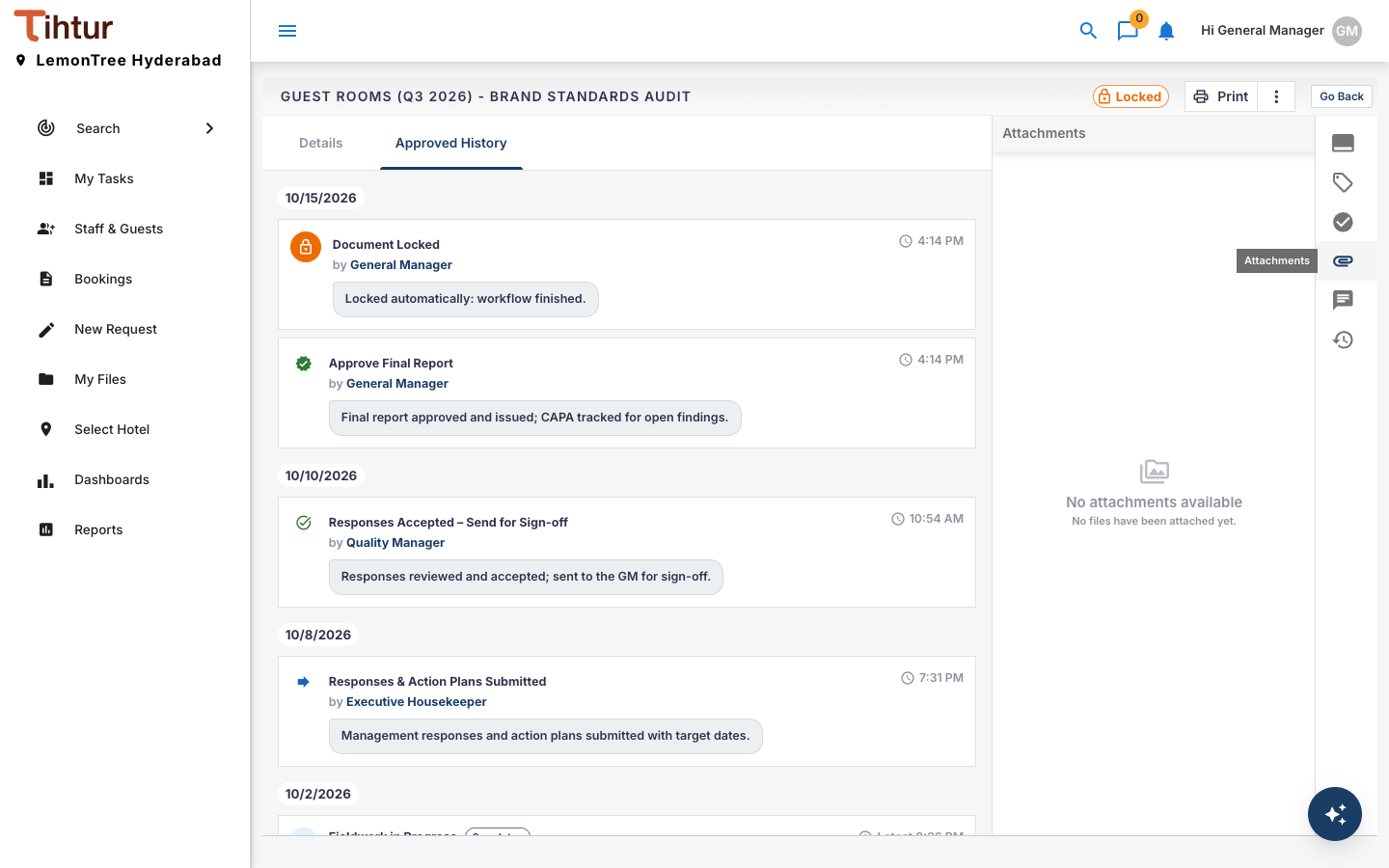
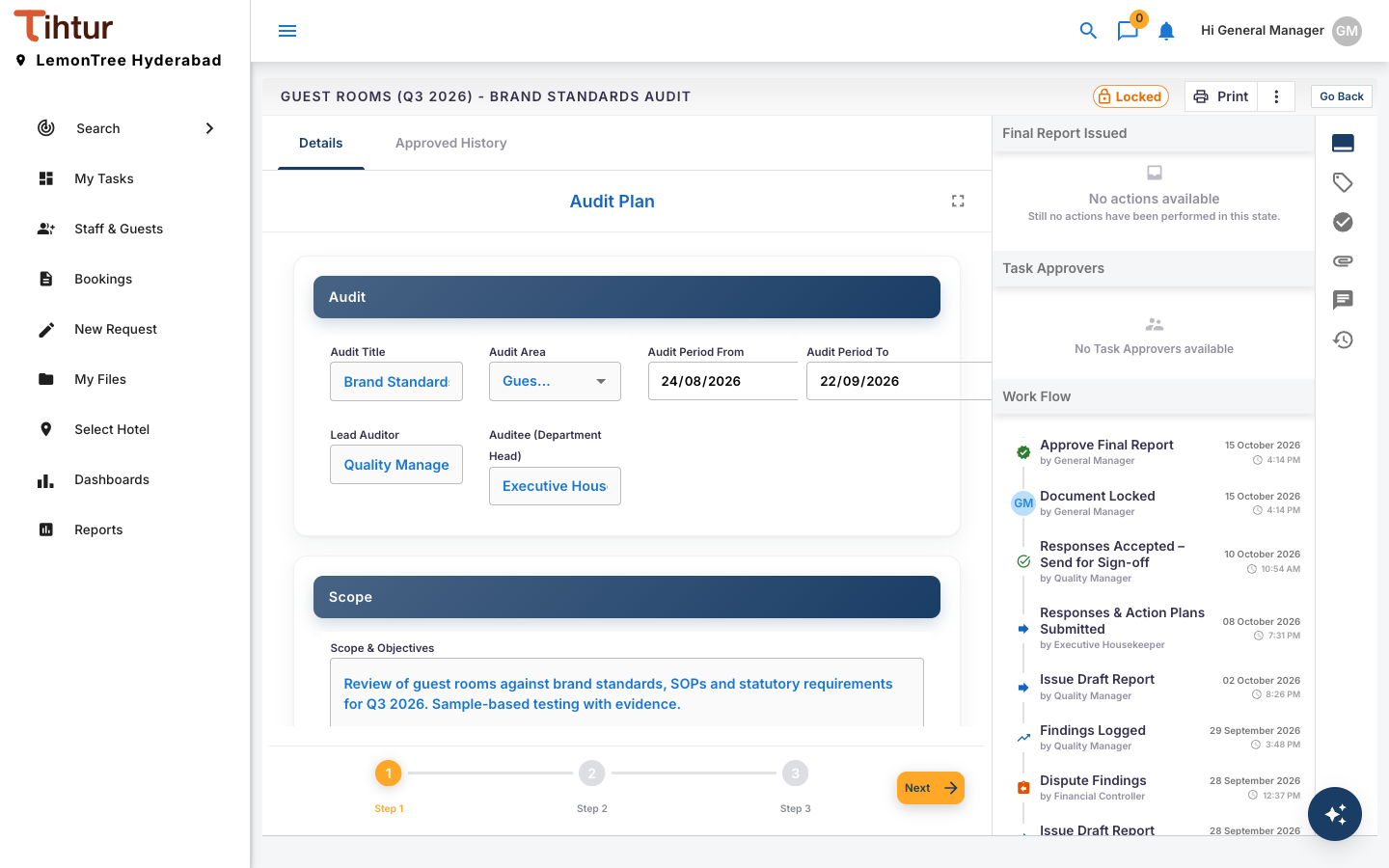
The task page has three parts:
- The header: the task name and form, a Locked badge if the document is locked, Reload Task (or Print where the form has a print layout), the ⋮ menu and Go Back.
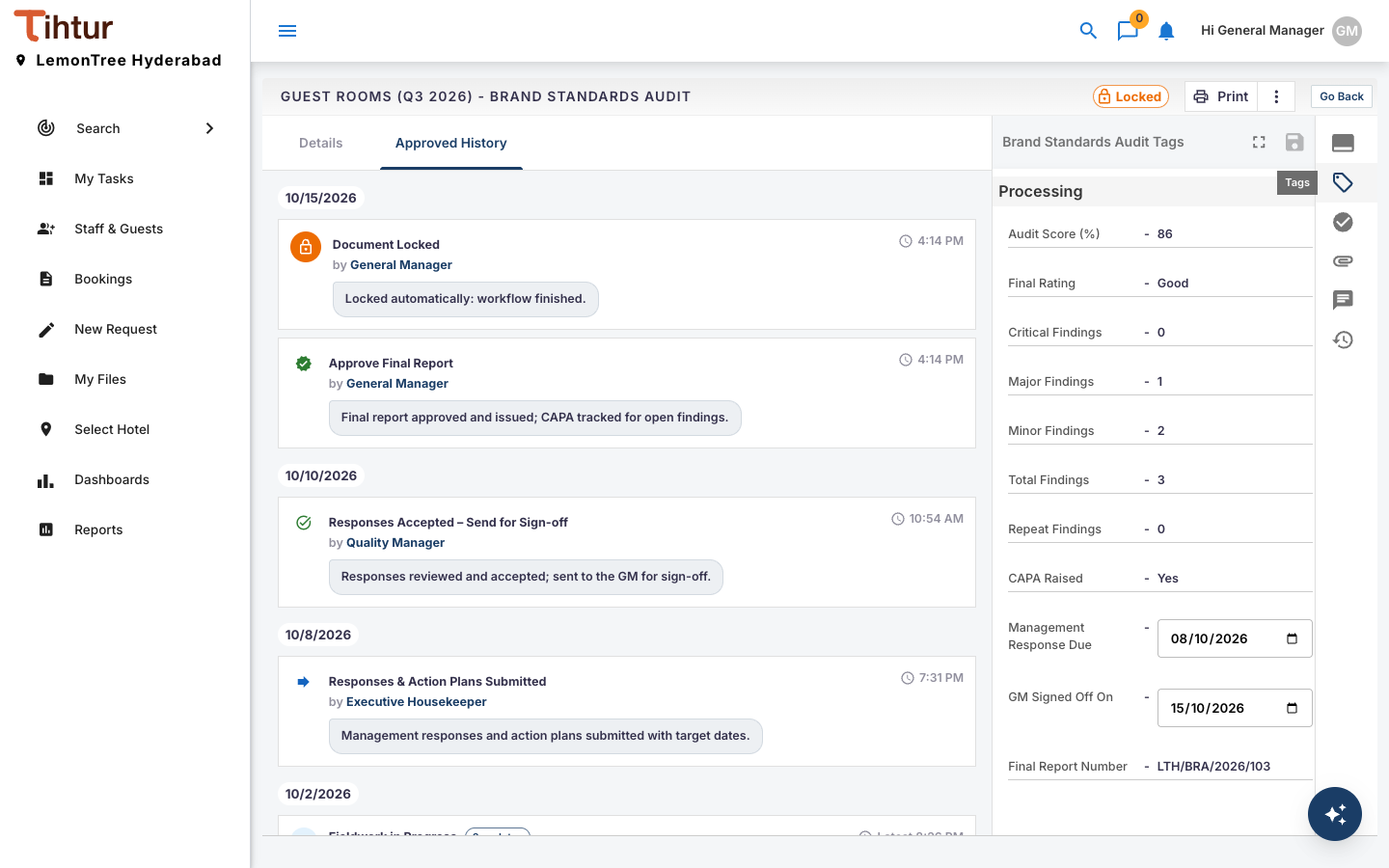
- The main area: Details (the form as submitted) and Approved History (every step and action with its comment).
- The side panel: by default it shows the current step with its actions, the Task Approvers and the Work Flow timeline. The icons on the right edge switch it to Tags, Attachments, Notes and History.
The ⋮ menu #
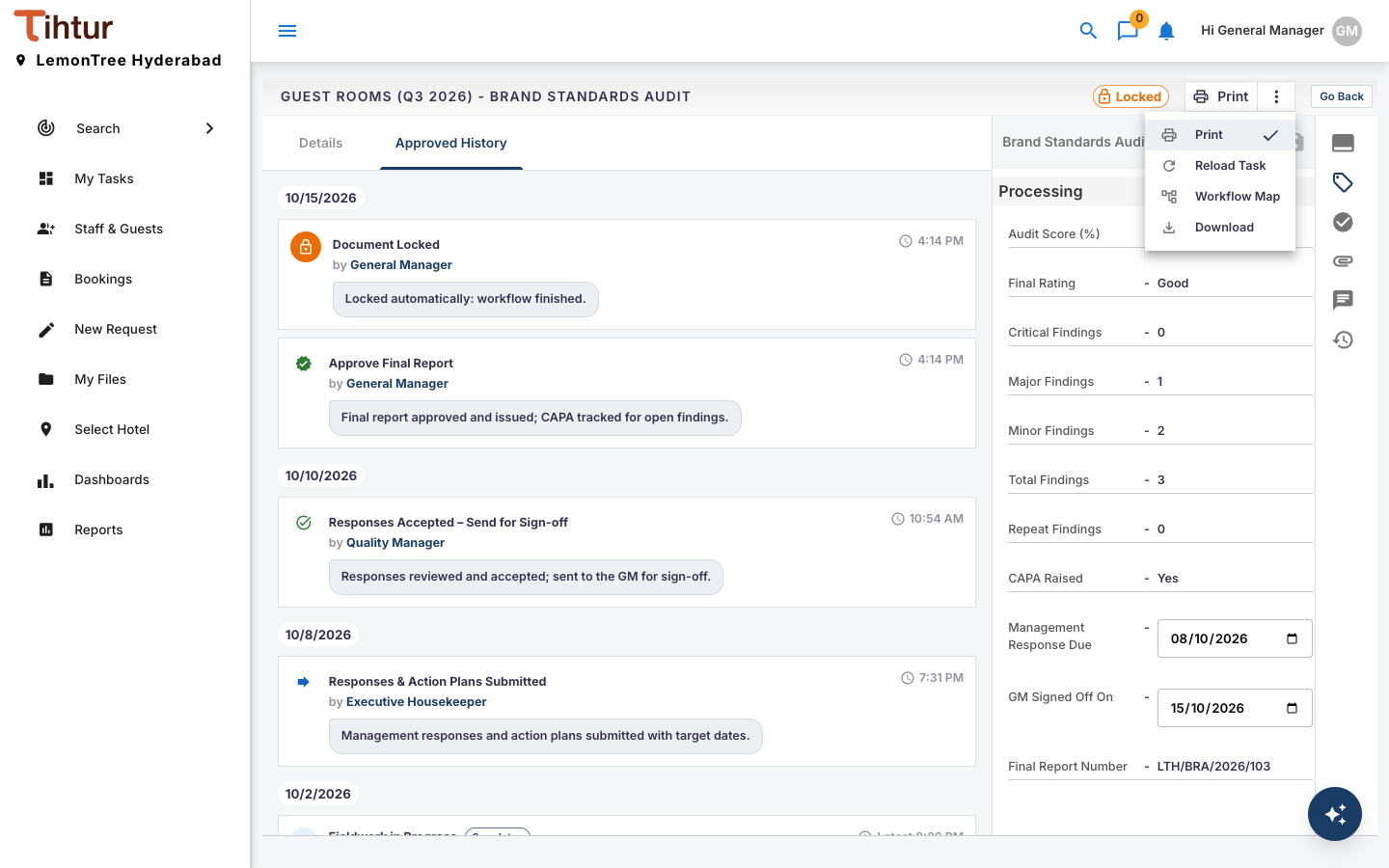
| Option | What it does | Who sees it |
|---|---|---|
| Prints the form in the hotel's layout | Where the form has a print layout | |
| Reload Task | Fetches the latest version of the task | Everyone |
| Workflow Map | Shows every step of this workflow and where the task is now | Everyone |
| Download | Downloads the form and its data | Where available |
| Delete Task | Removes the task from every list. It is kept, so the administrator can restore it. | Admins and users whose profile allows it |
| Restart Workflow | Clears the history and sends the task back to the first step; unlocks it if it was locked | Admins and users whose profile allows it |
| Lock Document / Unlock Document | Stops (or allows) further changes | Admins |
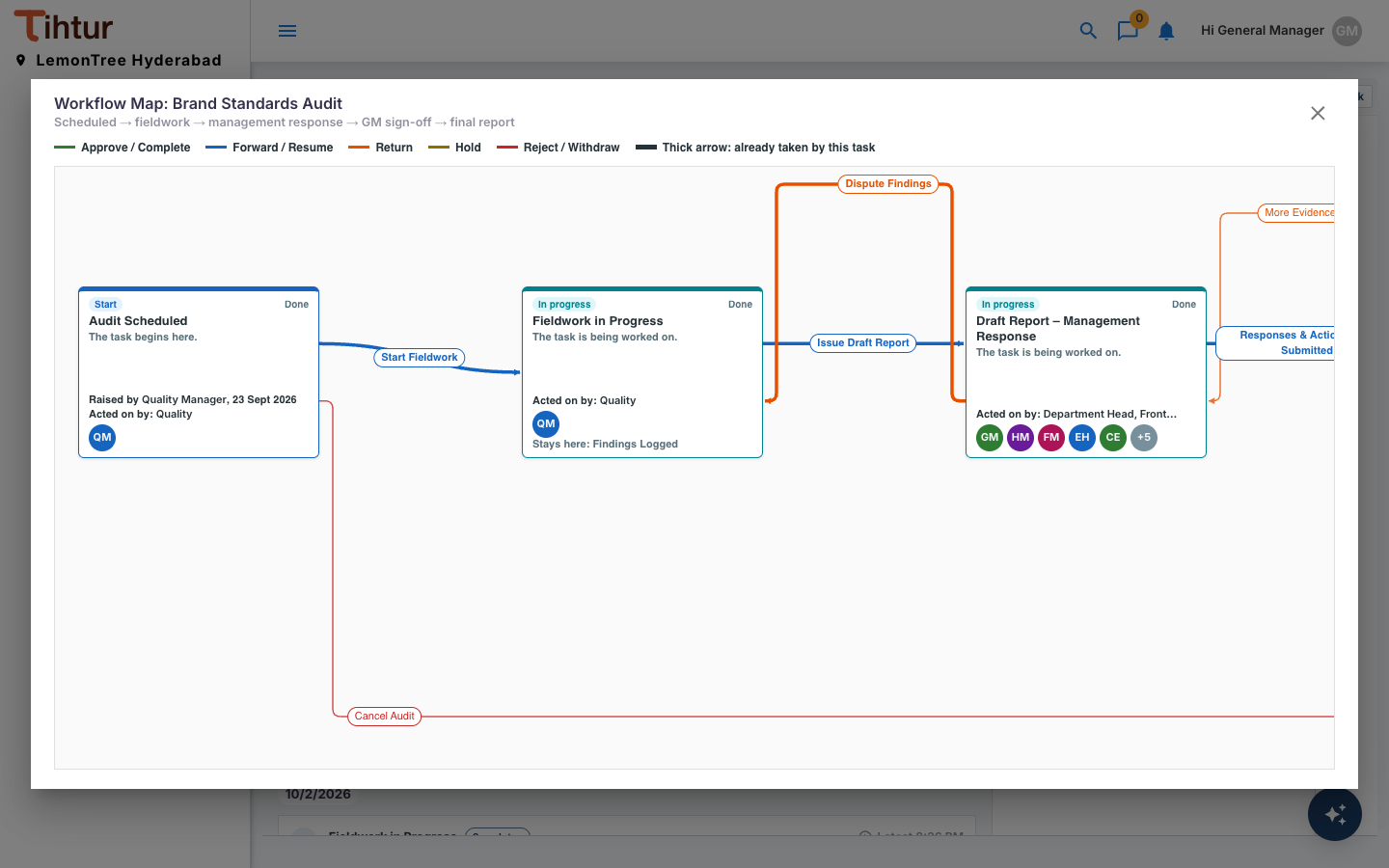
After choosing Workflow Map, the button next to the menu changes to Workflow Map; press it to open the map. It shows each step, the actions between them, who acted, and the route this task has taken (thick arrows).
The history #
Approved History lists every action, newest first, with who acted, when, the step it led to and the comment.
Taking an action #
When the task is at a step where you are an approver, the side panel shows that step's actions as buttons.
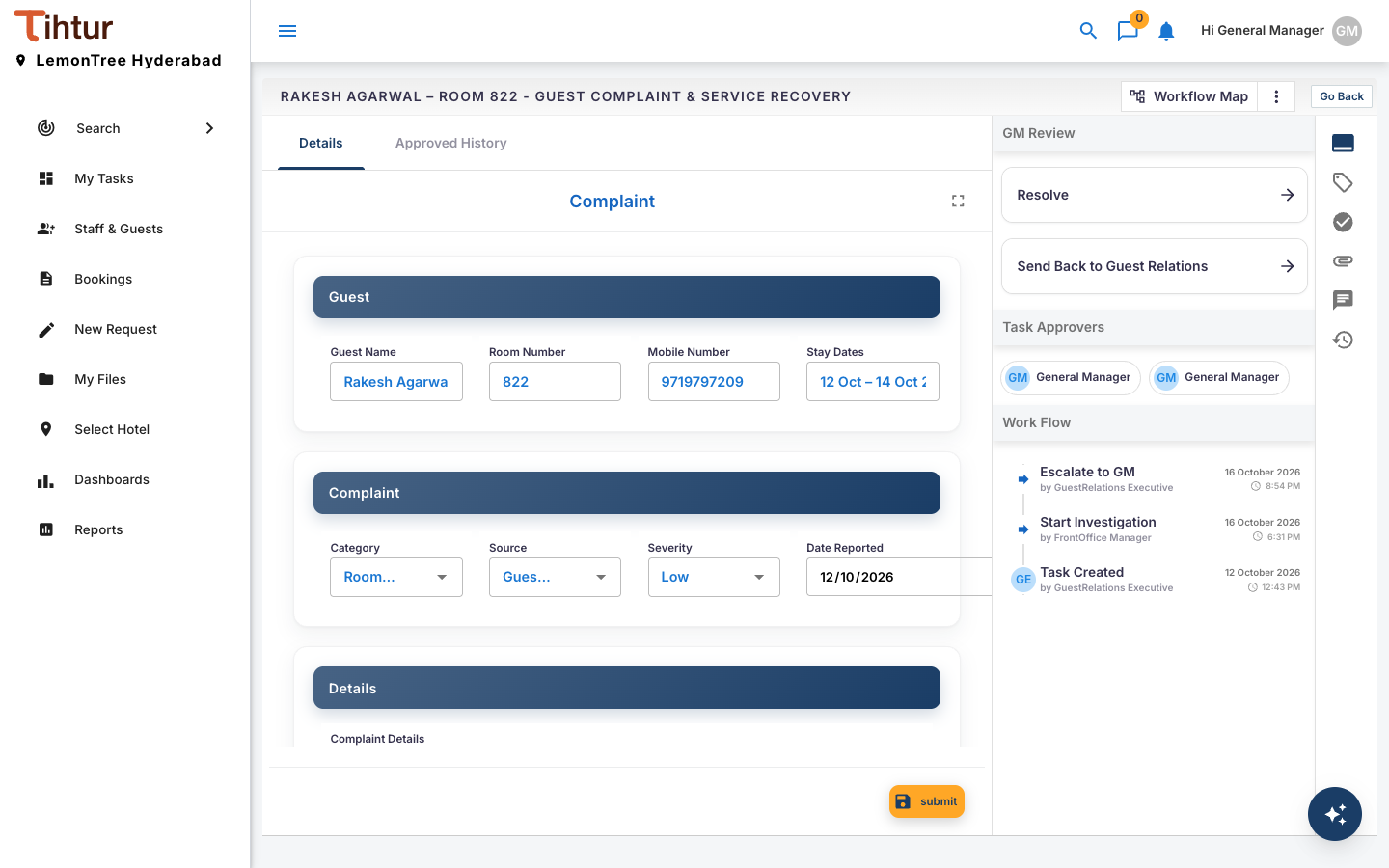
- Open the task; if the side panel shows something else, press the Actions icon at the top of the right edge.
- Press the action you want. The task moves to the next step, and the people at that step are notified.
- For a rejection or a return, add a note explaining why.
Each action is recorded in History. If a task needs to start over, an admin can use Restart Workflow.
Tags #
- Press the Tags icon. Edit the values and press the save icon. A red dot means you have unsaved changes; switching tabs asks you to Save or Discard.
- Some tags are linked to a form field. They fill in by themselves, show the form's value, and cannot be edited on the Tags tab.
Notes #
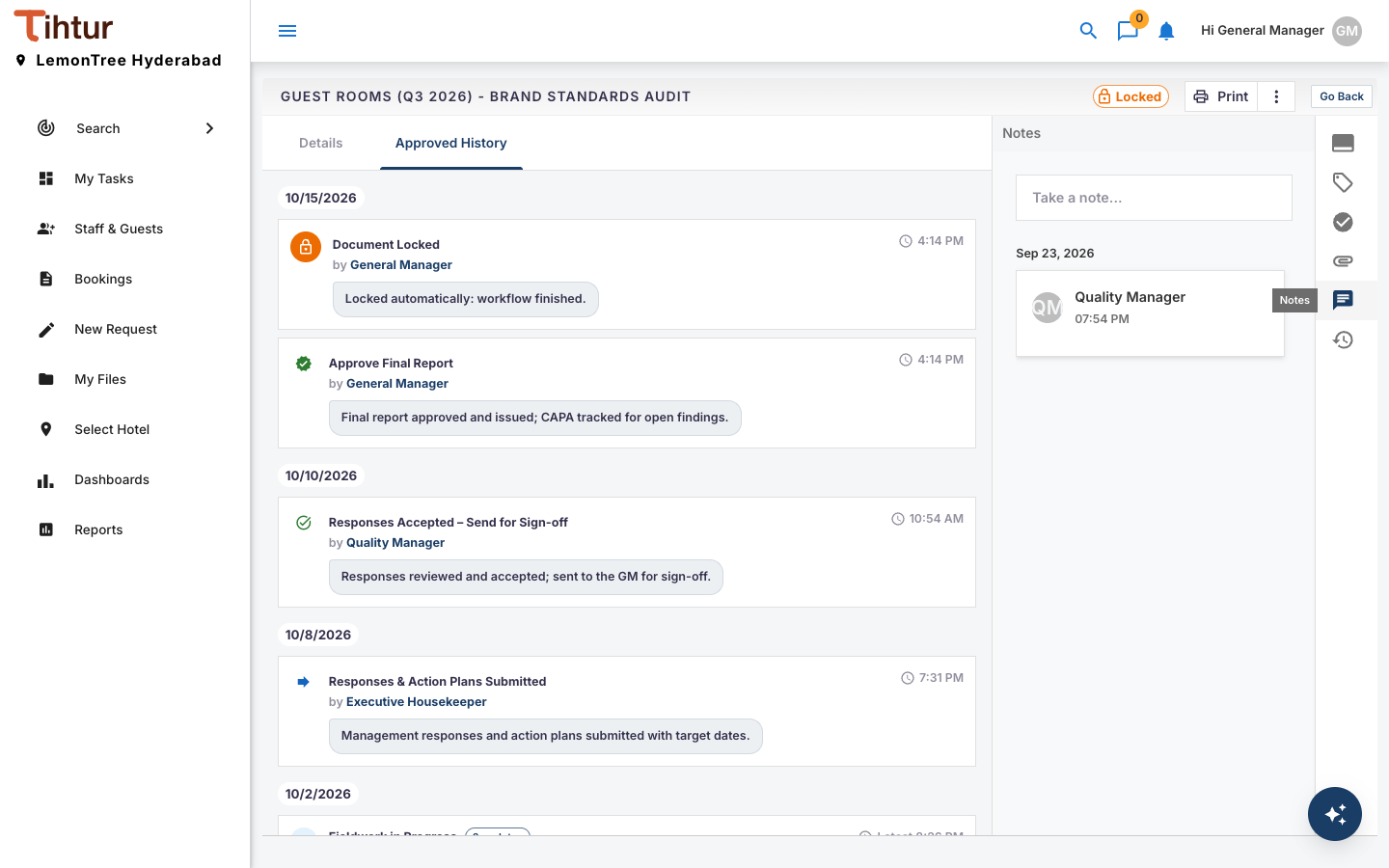
Press the Notes icon, then Take a note… to write one. Everyone working on the task sees the conversation.
Attachments and linked documents #
Add attachment uploads a new file; Link a document from the system attaches an existing record without uploading it again. Whether you can add or remove them depends on your profile.