
Who can see and act #
Workflow approvers decide who acts at each step. Document access decides who can raise, open and search each document type at all.
Access levels #
| Level | Meaning |
|---|---|
| Full control | Everything, including changes (AdminRole) |
| Process | Open, search and work on every request of this type |
| Raise & view | Raise the request and follow your own |
| View only | Read without acting |
| Audit view | Read everything, for audit |
Worked example: Health Check-up Booking #
| Role | Level |
|---|---|
| Patient (job role) | Raise & view |
| Front Office Executive, Lab Manager (job roles) | Process |
| Front Office, Laboratory, Radiology, Clinical (approval roles) | Process |
| Consultant Doctor (job role) | View only |
| External Auditor (orange card) | Audit view |
| AdminRole | Full control |
Set access #
- Open Document Flow, select the document type, and open its Roles tab.
- Move each role from All Roles to Selected Roles (use +), set its level, and save.
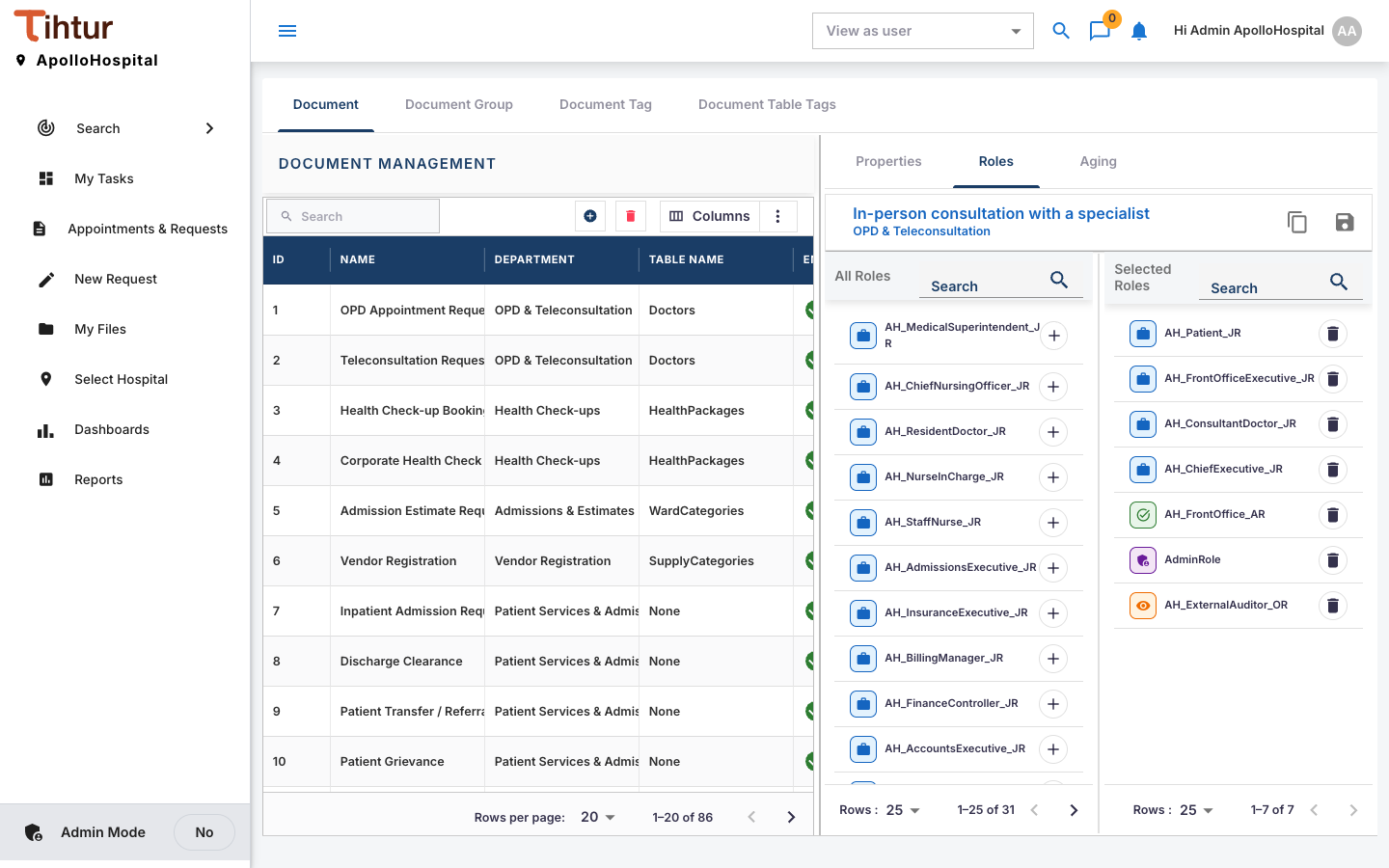
Green card and orange card #
- Green card (
AdminRole): every document type, can act on any task. System administrator only. - Orange card: every document type, dashboard, but cannot change anything: no creating, editing, deleting or approving, and no admin pages. For demo and auditor logins.
Check your work #
Sign in as a test user of each kind and check what they can raise, what Search finds, and that tasks reach the right approvers.
Next: 11. Dashboards