
Search #
Search finds requests and records across the hospital, including closed ones.
Searching step by step #
- Open Search from the menu.
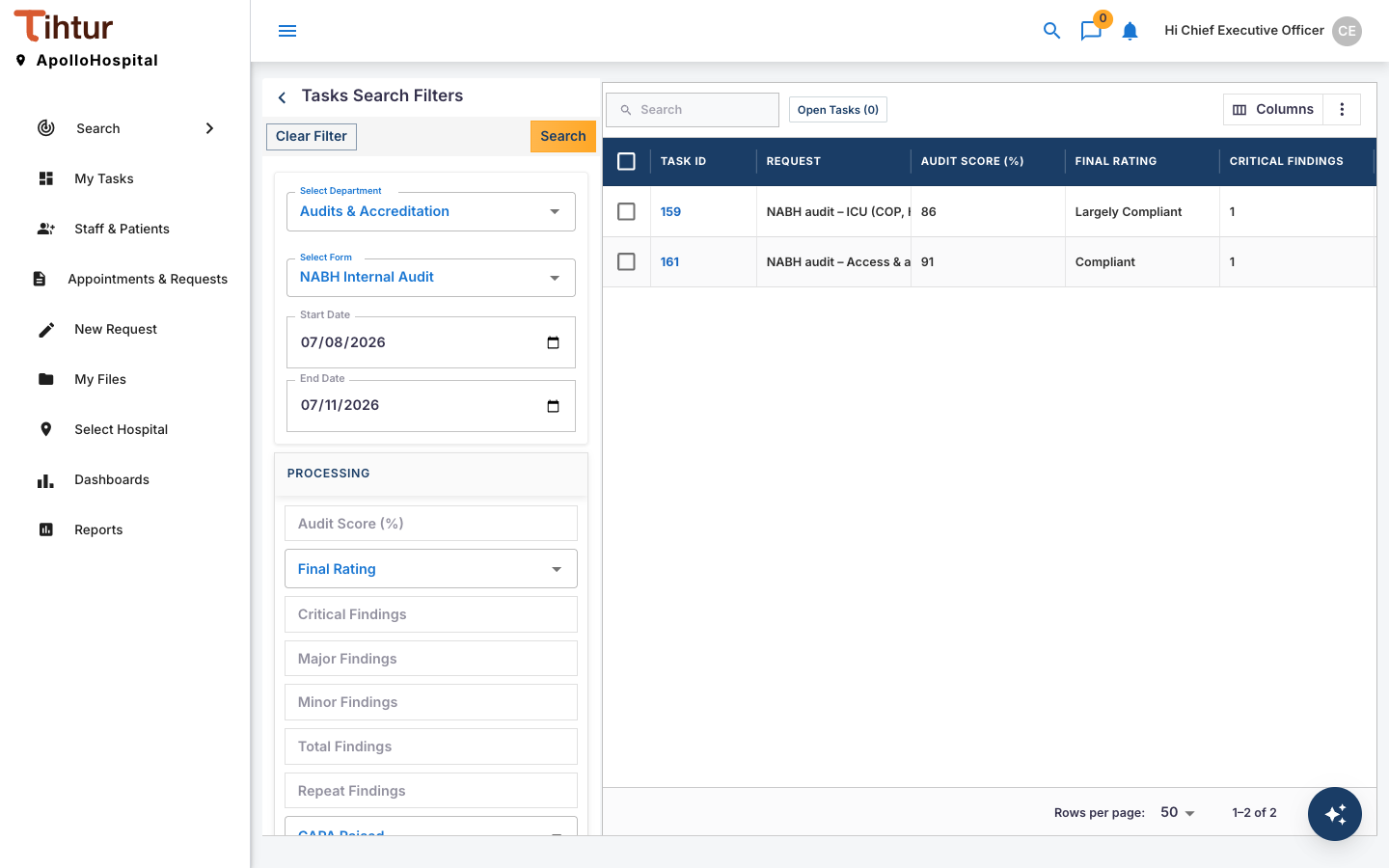
- Under Tasks Search Filters, choose Select Department, for example Accounts Payable, then Select Form, for example Supplier Invoice.
- Set the Start Date and End Date.
- Optional: fill in any of the detail fields below (the tags), such as an invoice number or a name.
- Press Search. The results appear on the right, with the details as columns. Clear Filter starts again.
Using the results #
- View opens a task's details; Open Tasks opens the ticked results as tabs.
- Edit (only if your profile allows it) corrects a record's details straight from the results.
- Export the results with the grid's export button.
What you can find #
Your own requests and the ones shared with you, plus every request and record of the document types your roles give you access to, for the hospital selected in the header.
Can't find something? Check the date range first, then the selected hospital. If it still doesn't show, your role may not include that document type.