
My Tasks #
My Tasks is the first page you see after signing in. It answers three questions: what did I ask for, what is waiting for me, and what is getting late.
The workspace dashboard #
The banner at the top counts your work: Application tasks, Assigned to me and Owned tasks. Below it are three tabs:
| Tab | What it shows |
|---|---|
| Application Tasks | Requests from patients, corporate clients and vendors that reach your desk |
| Assigned Tasks | Requests waiting for your action (you are the approver of the current step) |
| Owned Tasks | Requests you raised yourself |
Each tab shows one card per document type, with the number of tasks. Press a card's arrow to open those tasks.
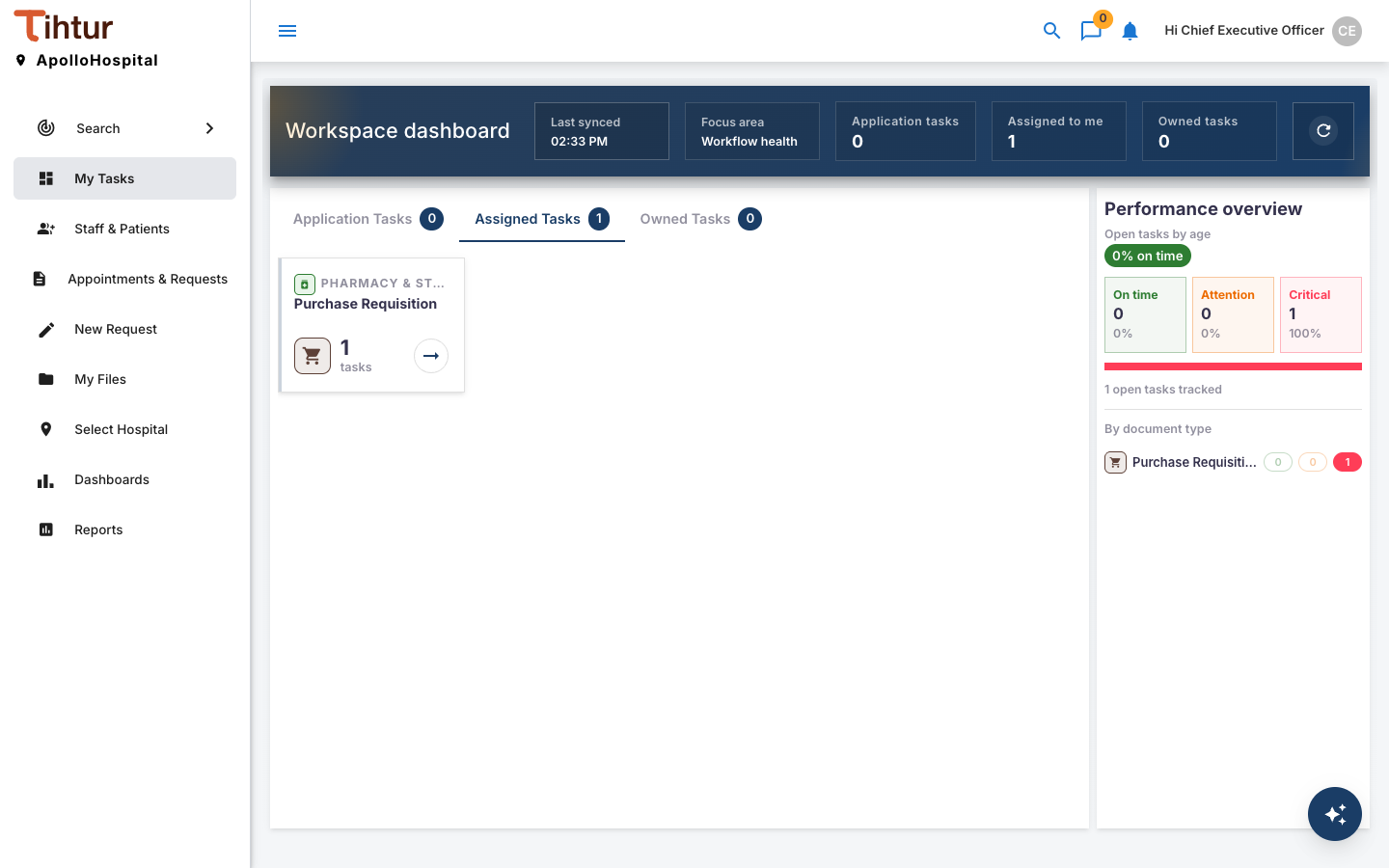
On the right, Performance overview marks your open tasks by how long they have been waiting:
| Mark | Meaning (default) |
|---|---|
| On time | Waiting 3 days or less |
| Attention | Waiting more than 3 days |
| Critical | Waiting more than 7 days |
The admin can change these limits in System settings, and per document type.
The task list #
The list shows one row per task: the task name, its Document Type (for example Staff Leave Request), its Status (the current workflow step) and dates.
- Filter with the Document Type and Status drop-downs above the list.
- Open one task: click its name.
- Open several tasks: tick the rows and press Open Tasks (n). Each opens in its own tab.
- Export the list to a spreadsheet with the grid's export button.
What to do next #
- To act on a task, see Working on a task.
- To find an older or closed task, use Search.
Tip: if a task you expect is missing, check Select Hospital in the menu.