
Hospitals and branches (Structures) #
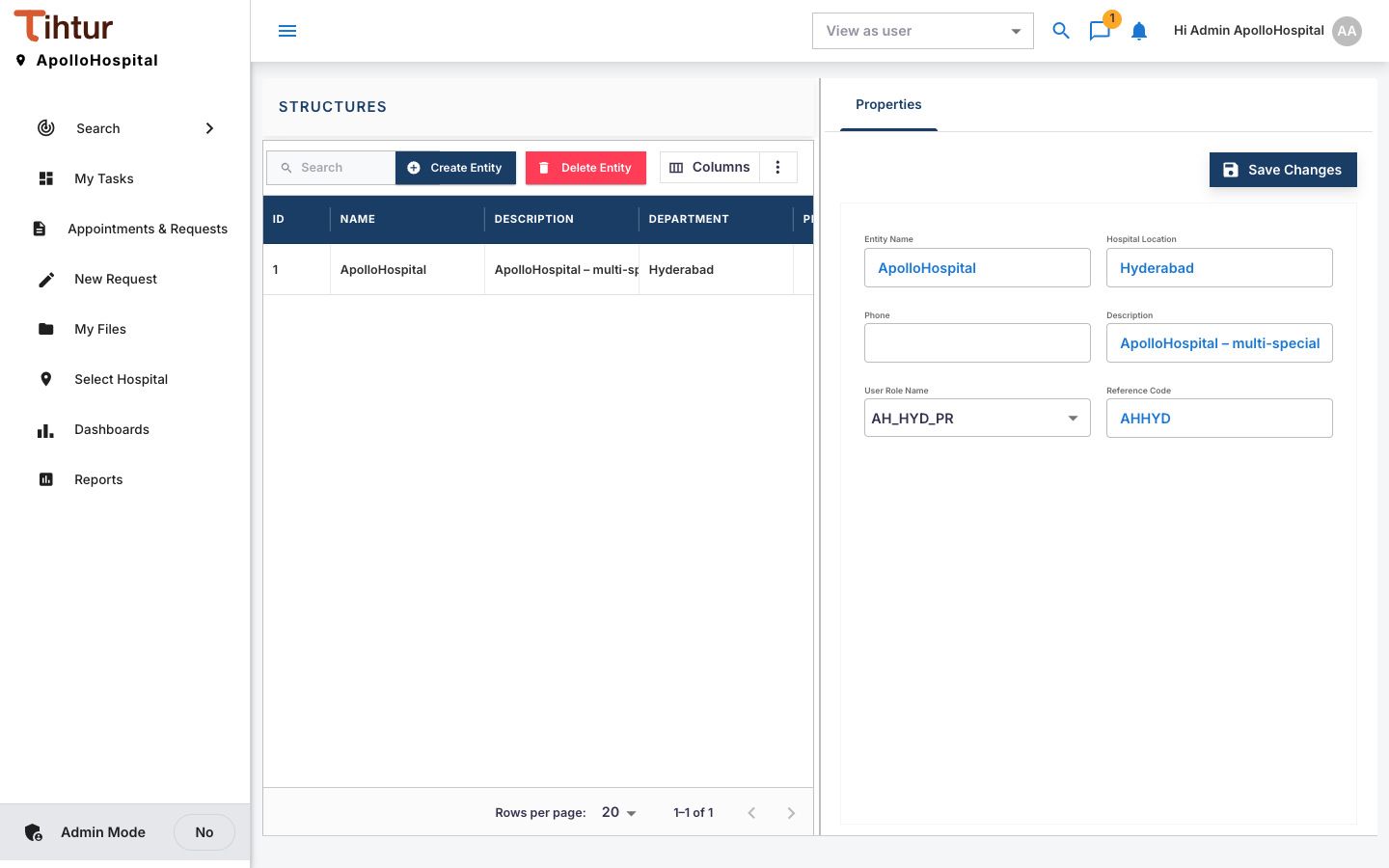
A structure (or entity) is one hospital. The demo has one: ApolloHospital, Hyderabad (reference code AHHYD, property role AH_HYD_PR). Every task belongs to an entity, and people only see the entities they belong to.
Why it matters #
- Separate data per hospital. Staff of one hospital see that hospital's tasks.
- The right approvers. A step is approved only by people of the task's hospital.
- Figures per hospital. Dashboards show the hospital selected in the header.
Before you start #
Each entity needs its own property role (role type Property Role). Create it under Staff & Patients → User Roles (Roles). Name it after the hospital's code, for example AH_HYD_PR.
Add a hospital #
- Open Structures from the admin menu and press Create Entity.
- Fill in the details. Example for a second hospital:
| Field | What to enter | Example |
|---|---|---|
| Entity Name | The full name, as on screens and reports | Apollo Hospital Secunderabad |
| Location | Town or area | Secunderabad |
| Phone | Main number | 040 … |
| Description | A short note | Apollo Hospital Secunderabad – second hospital |
| Reference Code | A short unique code | AHSEC |
| User Role Name | The property role you created | AH_SEC_PR |
- Press Save Changes. It appears under Select Hospital for everyone who holds its property role.
Give people access #
A user belongs to a hospital when they hold its property role. Give it when you create or edit the user (Users). People who work across hospitals get each hospital's property role and switch in the header.
Common mistakes #
- A user sees no tasks at all: they have no property role.
- The selector is missing a hospital: the user lacks that hospital's property role.
- Sharing one property role between two hospitals: their data gets mixed.
Next: 3. Roles