
Users #
Every person who signs in needs a user, which brings together their user type, hospital, roles and profile type.
User types #
| User type | For | What they see |
|---|---|---|
| Job | Staff | My Tasks, Create, Applications, Search, and dashboards if their profile allows |
| Default | Patients, corporate clients and vendors (portal users) | Their own requests, Book Online and Help Desk |
| Admin | The system administrator | Everything, plus the setup pages |
| Entity Admin | A hospital-level administrator account | Staff pages, for running one hospital |
Add a user #
- Open Staff & Patients → Users and press the add button above the list.
- Fill in First Name, Last Name, Username (what they type to sign in), Email, a first Password, Phone Number, Address, Profile Image and the User Type. Server Email is an optional second address for your records. Enabled / Locked turn sign-in off without deleting the user.
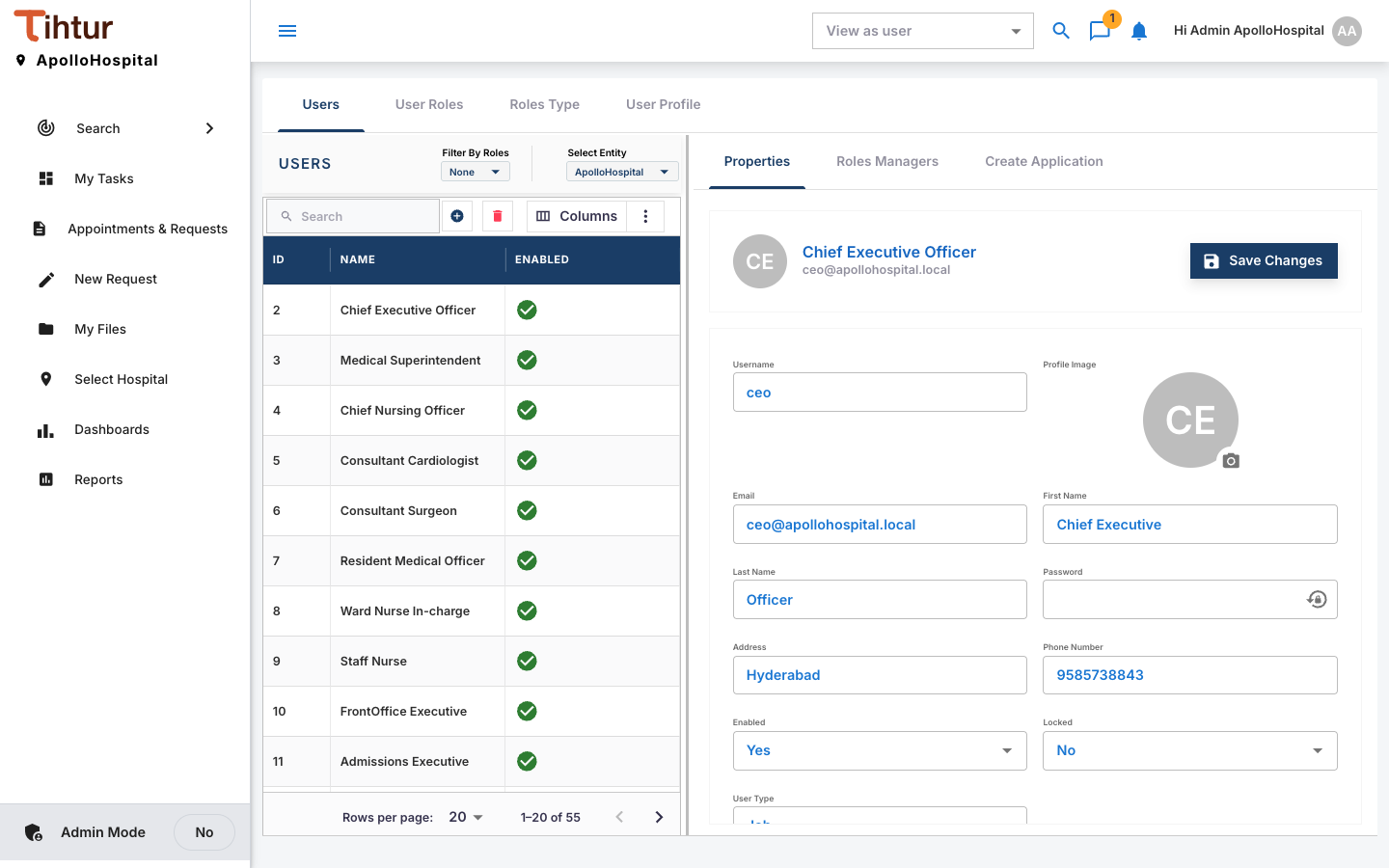
- Give the property role of each hospital they work in.
- Add their roles (Roles) and choose their profile type (Profile types).
- Save.
Portal users #
| Portal user | Give them |
|---|---|
| Patients | the Patient job role, the Patient Portal security role and the hospital property role |
| Corporate clients | the Corporate Client job role, the Patient Portal security role and the hospital property role |
| Vendors | the Vendor job role, the Patient Portal security role and the hospital property role |
All portal users get user type Default.
When someone leaves #
Untick Enabled (or tick Locked). Their history stays intact; give their successor the same roles.
Next: 6. Data tables