
Who can see and act #
Workflow approvers decide who acts at each step. Document access decides who can raise, open and search each document type at all. You set it per document type, role by role.
Access levels #
When you give a role access to a document type, you pick a level. The demo school uses five:
| Level | Meaning | Typical roles |
|---|---|---|
| Full control | Everything, including changes | AdminRole |
| Process | Open, search and work on every request of this type | The records security role, for example Admission Records on admissions |
| Raise & view | Raise the request and follow your own | Parent, Applicant on Admission; All Staff on Staff Leave Request |
| View only | Read, without acting | Observers |
| Audit view | Read everything, for audit | Auditors |
Worked examples #
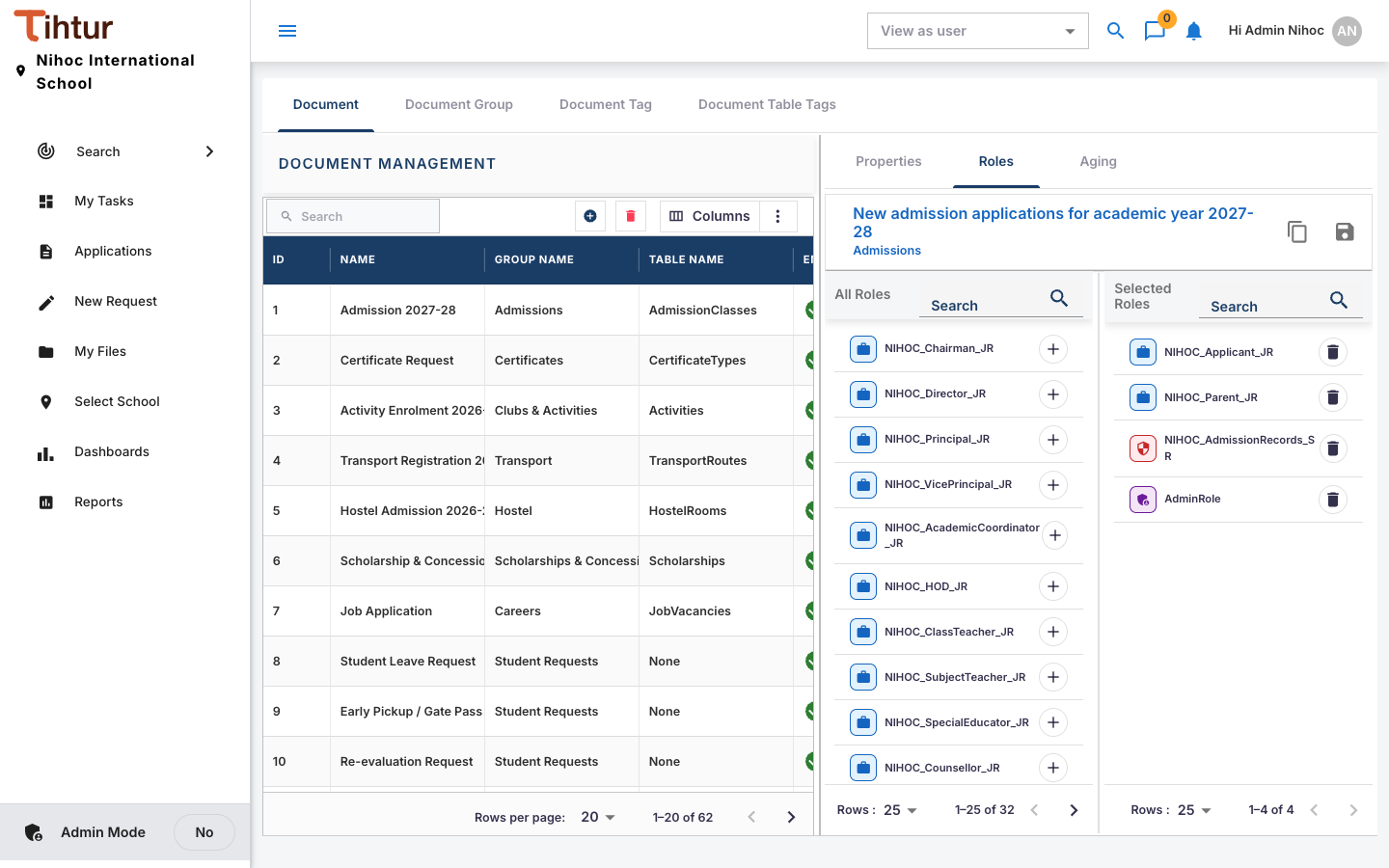
Admission 2027-28
| Role | Level |
|---|---|
| Parent, Applicant | Raise & view |
| Admission Records (security role) | Process |
| AdminRole | Full control |
Staff Leave Request
| Role | Level |
|---|---|
| All Staff (security role) | Raise & view |
| Staff Records (security role) | Process |
| AdminRole | Full control |
Approvers of the workflow steps (the Principal, the HR Manager) see the request when it reaches their step, through the workflow.
Set access for a document type #
- Open Document Flow, select the document type, and open its Roles tab.
- Move each role from All Roles to Selected Roles (use +), and set its access level.
- Save. People holding those roles see the document type on their pages and in Search at their next refresh.
Green card and orange card #
Two special role types bypass the per-document setup:
- Green card (
AdminRole): sees every document type and can act on any task. Give it to the system administrator only. - Orange card: sees every document type, dashboard and report, but cannot change anything: no creating, editing, deleting or approving, and no admin pages. It is meant for demo and inspection logins.
Check your work #
Sign in as a test user for each kind of person (a parent, a teacher, the Principal, the accountant) and check:
- the Apply Online or New Request page shows exactly the forms they should raise;
- Search finds what they should find, and not more;
- tasks reach the right approvers.
Next: 11. Dashboards