
Applying as a parent or student #
Parents and students use TihTur to apply for things the school offers and to follow each application until it is decided. No forms to print, no queue at the office.
What you can apply for #
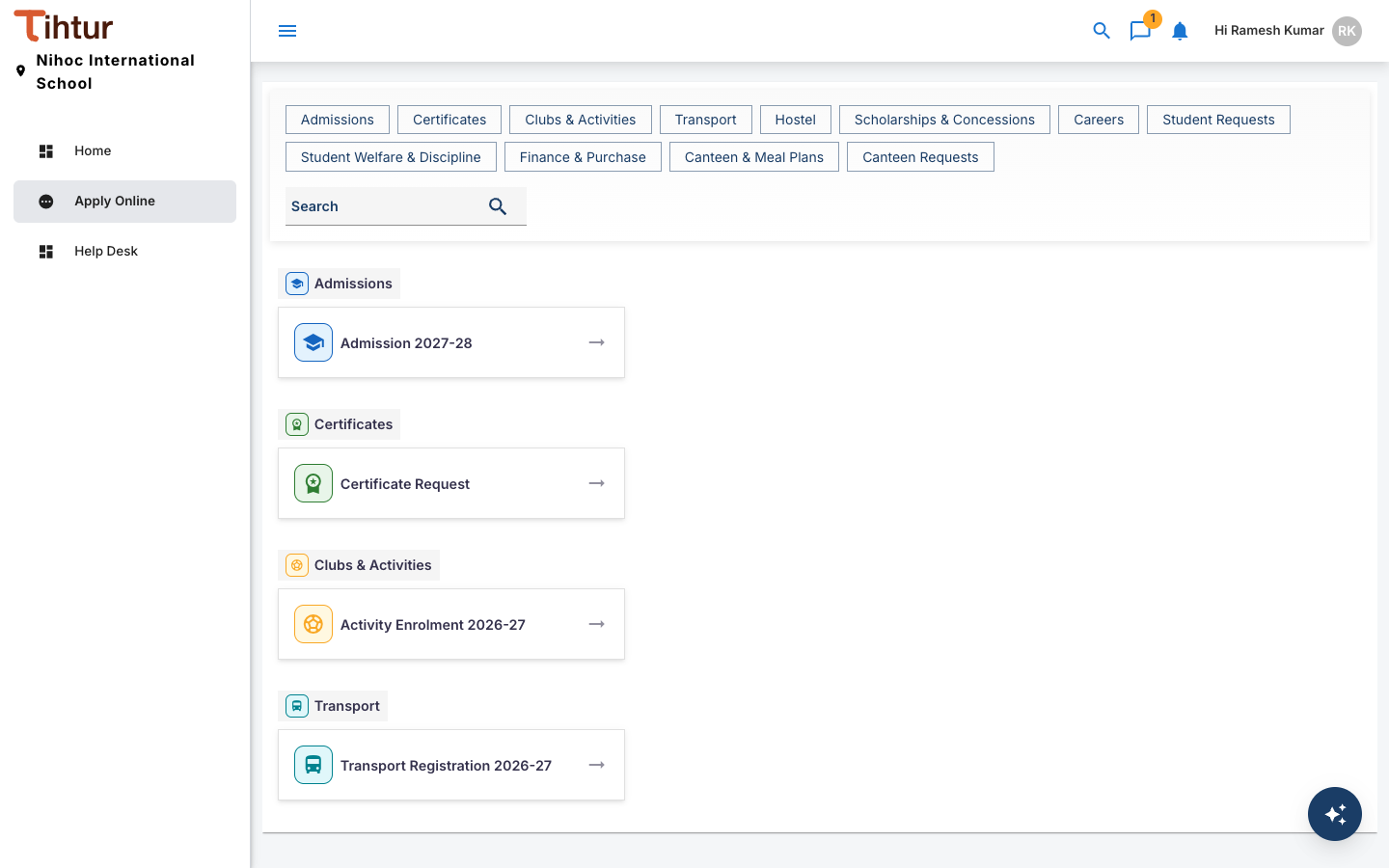
The Apply Online page lists the forms open to you, grouped by area. Use the buttons at the top to jump to a group, or Search for a form. In the demo school these include:
| Group | Example forms |
|---|---|
| Admissions | Admission 2027-28 |
| Transport | Transport Registration 2026-27 |
| Hostel | Hostel Admission 2026-27 |
| Scholarships & Concessions | Scholarship & Concession 2027-28 |
| Clubs & Activities | Activity Enrolment 2026-27 |
| Certificates | Certificate Request |
| Canteen & Meal Plans | Meal Plan Subscription 2026-27 |
| Careers | Job Application |
Your school decides which forms are open, and when.
Worked example: an admission application #
- Sign in with the username and password the school gave you, and open Apply Online.
- Choose Admission 2027-28.
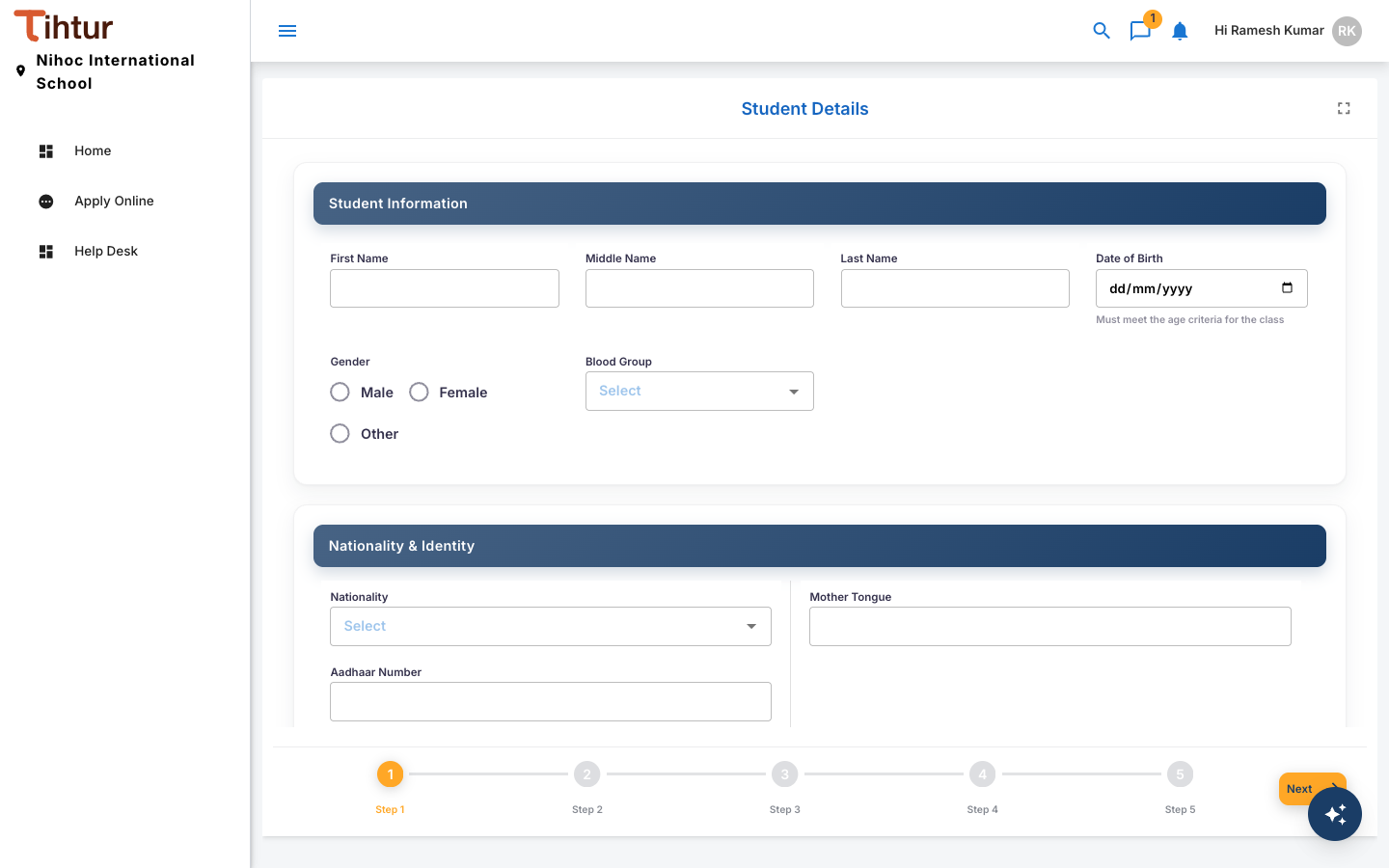
- Fill in each part of the form:
- Student Information and Nationality & Identity: name, date of birth, gender, Aadhaar or passport details.
- Admission Preferences: transport, hostel, and whether a brother or sister already studies at the school.
- Previous School: add one entry per school attended.
- Father, Mother and Primary Contact: names, occupations, mobile numbers and emails.
- Residential Address, Medical Information and Emergency Contact.
- Upload Documents: birth certificate, student photograph, Aadhaar or passport, previous report card, transfer certificate, parent ID and address proof.
- Declaration: confirm the details are correct. The form is split into steps; press Next to move on.
Following your application #
Open the application from My Tasks to see where it is. An admission in the demo school goes through these steps:
Application Received → Document Verification → Entrance Assessment → Principal Interaction → Offer & Fee Payment → Enrolment → Admitted
Along the way it can also be Returned for Correction (the school needs a change from you), Waitlisted, Rejected or Withdrawn.
- The History tab shows every step, who acted and when.
- The Notes tab is where the school leaves messages for you. You will also see a notification.
If the school returns your application #
When an application is Returned for Correction, the school's note tells you what is missing or needs fixing. Reply on the Notes tab, or send the corrected document as the note asks. The admissions office records the correction and moves the application on with Corrections Received.
Withdrawing #
To withdraw an application, ask the admissions office in a note on the application. They can withdraw it while it is at an early step (Application Received or Returned for Correction).
Parents with more than one child apply once per child. Each application is tracked separately.