
Workflows #
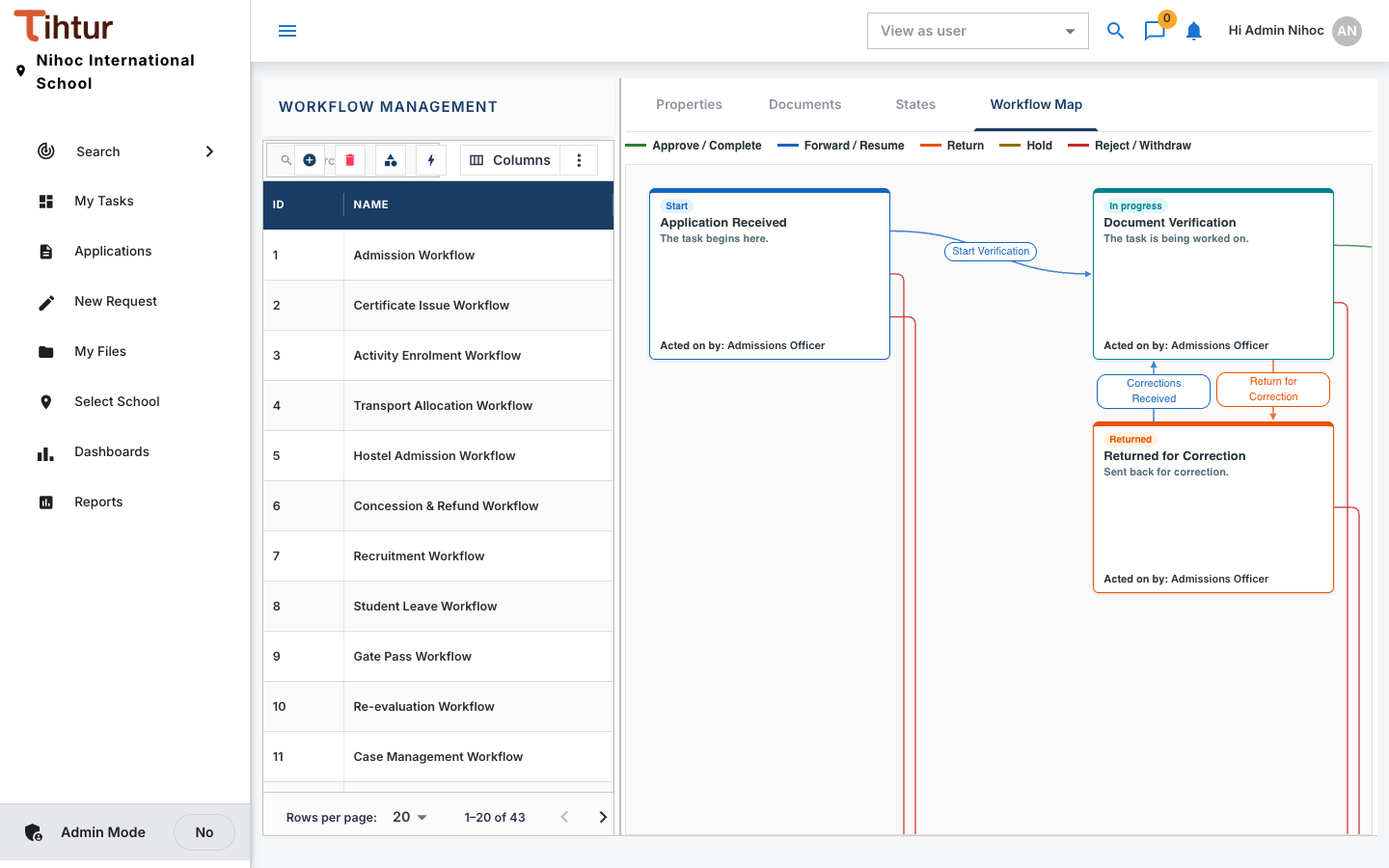
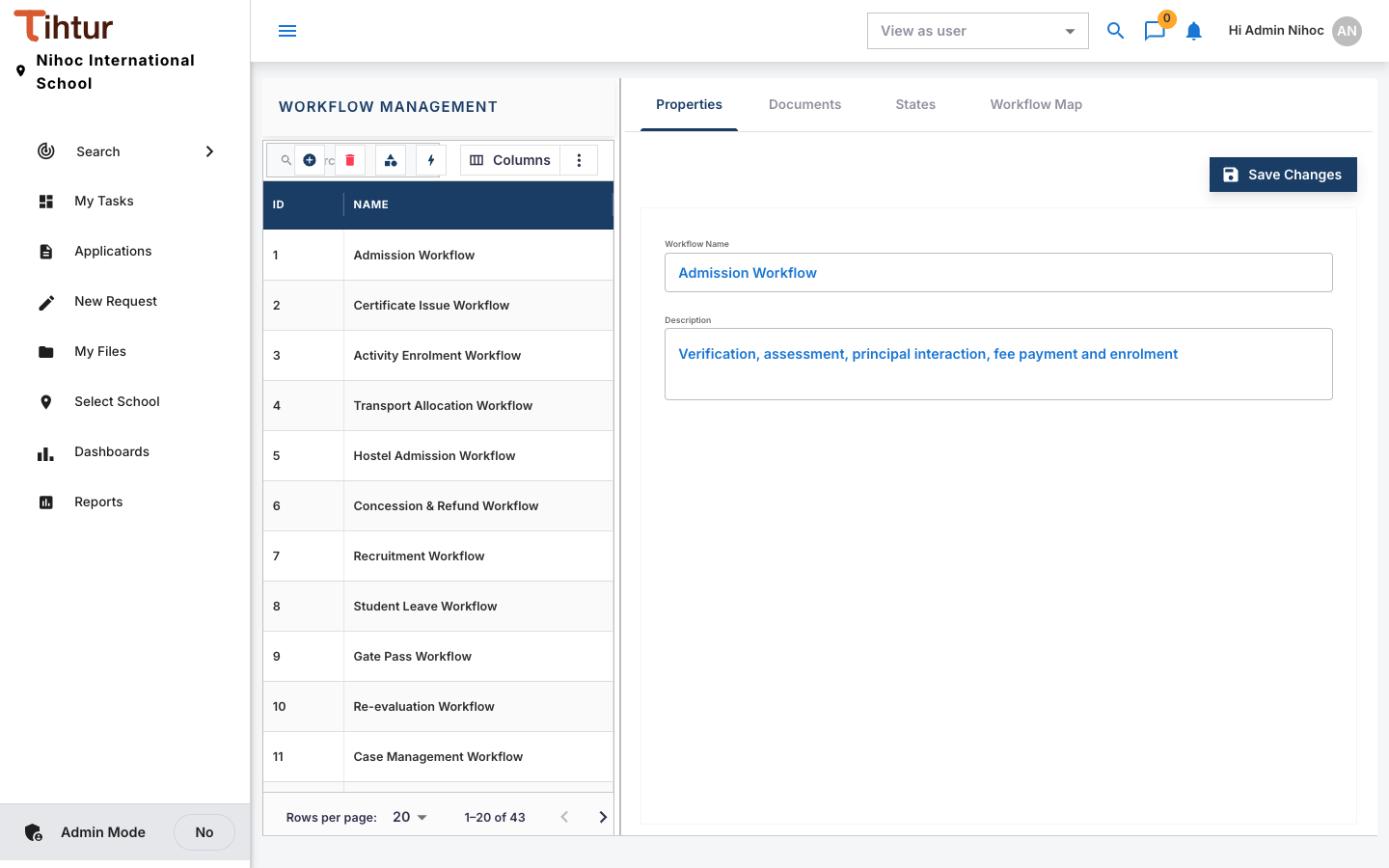
A workflow is the route a request takes: its steps (states), the actions that move it between steps, and the approvers of each step. Workflows are managed under Work Flow, on the tabs Properties, Documents, States and Workflow Map.
The parts of a workflow #
| Part | What it is | Example |
|---|---|---|
| State (step) | Where the task is now | Document Verification |
| State type | What kind of step it is | Started, In Progress, Returned, On Hold, Completed, Rejected |
| Action | A button at a step | Documents Verified |
| Action type | What kind of action it is | Approve, Reject, Return, Forward, Hold, Resume, Withdraw, Complete, Under Process |
| Transition | Where an action leads | Documents Verified → Entrance Assessment |
| Approvers | The roles that act at a step | Admissions Officer |
| Documents | The document types that use this workflow | Admission 2027-28 |
Worked example: the admission workflow #
| Step | Approvers | Actions → next step |
|---|---|---|
| Application Received (start) | Admissions Officer | Start Verification → Document Verification · Reject Application → Rejected · Withdraw Application → Withdrawn |
| Document Verification | Admissions Officer | Documents Verified → Entrance Assessment · Return for Correction → Returned for Correction · Reject Application → Rejected |
| Returned for Correction | Admissions Officer | Corrections Received → Document Verification · Withdraw Application → Withdrawn |
| Entrance Assessment | Academic Coordinator | Assessment Scheduled (stays) · Assessment Cleared → Principal Interaction · Assessment Not Cleared → Rejected |
| Principal Interaction | Admission Approval | Approve Admission → Offer & Fee Payment · Move to Waitlist → Waitlisted · Reject Application → Rejected |
| Waitlisted | Admission Approval | Seat Available – Approve → Offer & Fee Payment · Close Application → Rejected |
| Offer & Fee Payment | Cashier, Accountant | Admission Fee Paid → Enrolment · Payment Reminder Sent (stays) · Offer Lapsed → Withdrawn |
| Enrolment | Office Admin, Admissions Officer | Admission Number Issued → Admitted |
| Admitted, Rejected, Withdrawn | — | Finished |
A short one, for comparison: Staff Leave Request goes Principal Approval (Staff Leave Approval role: Approve / Reject) → HR Recording (HR Manager: Recorded in Register / Payroll) → Approved & Recorded.
Build a workflow #
- Open Work Flow, press the add button, and enter the Workflow Name and Description on Properties.
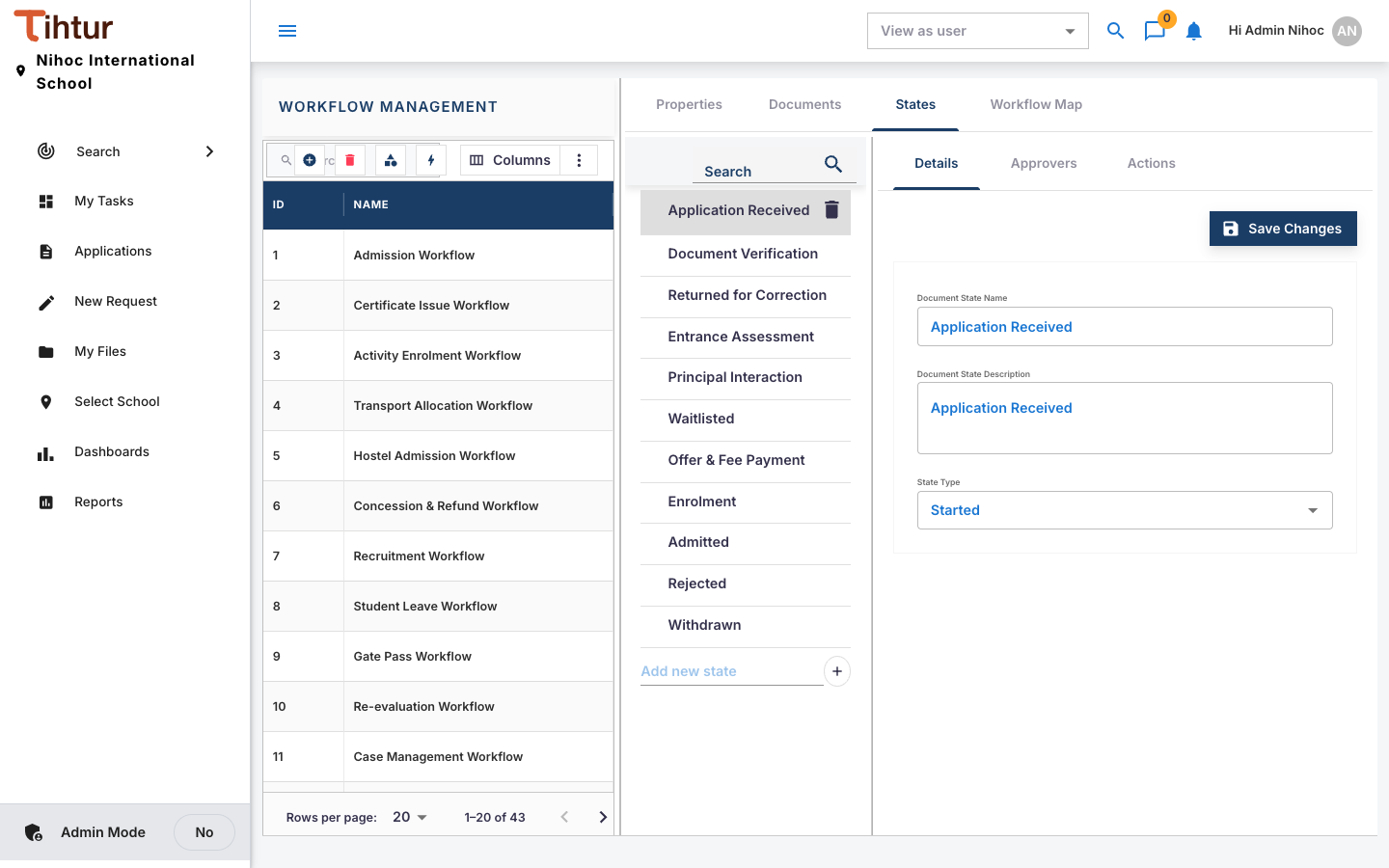
- States: Add new state for each step. Each state has three sub-tabs:
- Details: the Document State Name, its description and the State Type; the first step gets steps = 1.
- Approvers: move the roles that act at this step from Available to Selected.
- Actions: add the step's actions (Action Name, Action Type) and, for each, the To State it leads to.
Rules that keep workflows healthy #
- Exactly one starting step (steps = 1) per workflow.
- Each action leads to exactly one step.
- Finished steps use the state type Completed or Rejected. Nothing can be done after them.
- Returned steps are handled by staff. When something comes back for correction, a staff member records that it was fixed. The requester answers through notes.
- Every step except the finished ones needs approvers, or the task gets stuck.
- Approvers act only for their own school: a step's approvers are the people holding the step's role and the task's school property role.
Common mistakes #
- No approver on a step. Tasks arrive there and nobody sees an action. Check with the Workflow Map.
- An action that leads back to the same step by mistake. Use this only on purpose, as with Payment Reminder Sent, which records the reminder and keeps waiting.
- Editing a live workflow's steps. Tasks already at a step you remove are stranded. Add new steps, move the transitions, and remove the old step only when it is empty.
Next: 10. Who can see and act