
System settings #
System Settings holds the rules that apply to everyone. Set them once at the start; you can change them at any time.
Open System Settings from the admin menu. The settings are grouped in sections (uploads and security, Task Aging, Email Reminders). Change the values and press Save. An Unsaved marker shows until you save; Discard throws your changes away.
The settings #
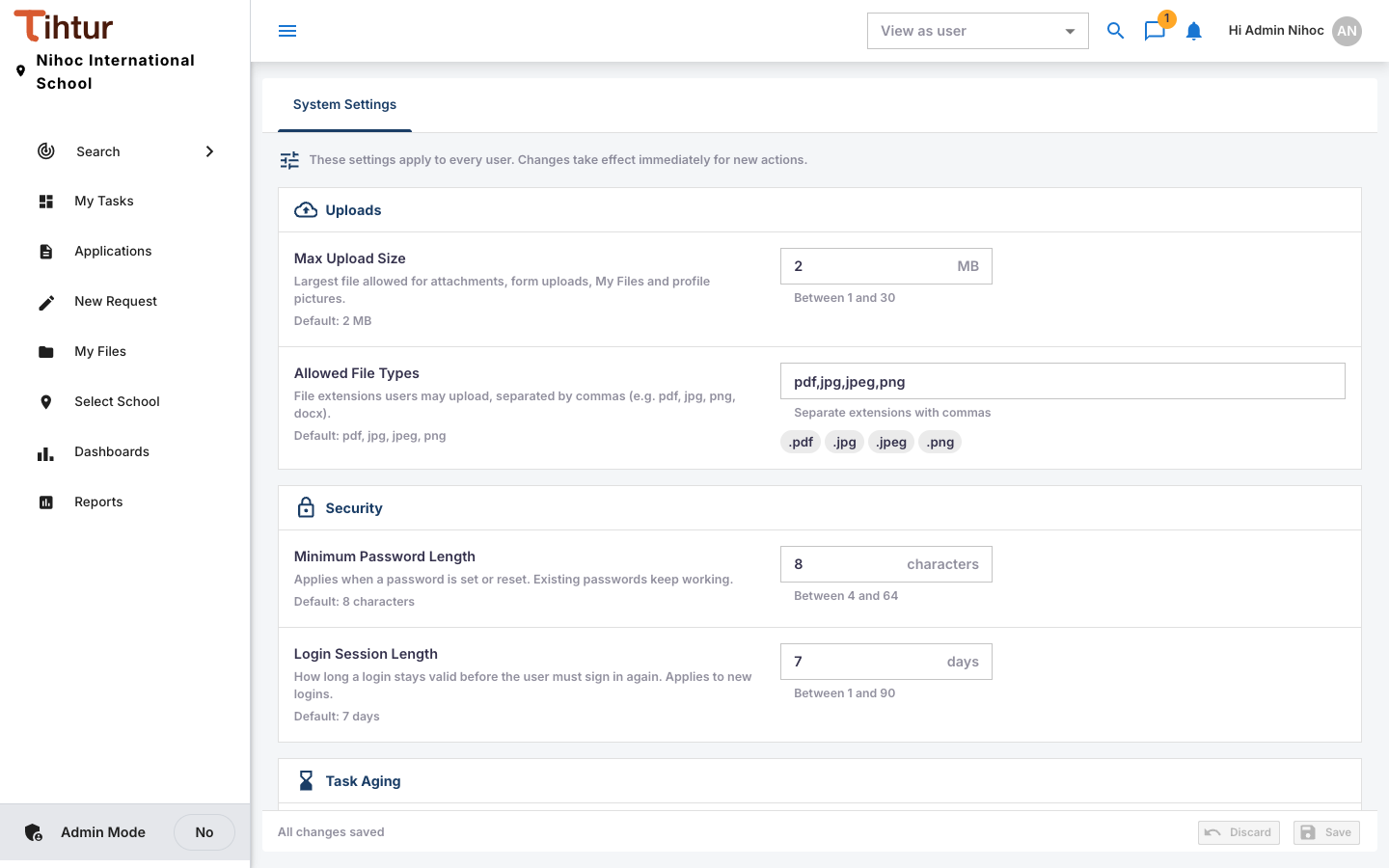
| Setting | What it controls | School default |
|---|---|---|
| Max Upload Size | The largest file for attachments, form uploads, My Files and profile pictures, in MB | 2 MB |
| Allowed File Types | File extensions users may upload, separated by commas (for example pdf, jpg, png, docx) |
pdf, jpg, jpeg, png |
| Minimum Password Length | Applies when a password is set or reset; existing passwords keep working | 8 characters |
| Login Session Length | How many days a sign-in stays valid. Applies to new sign-ins. | 7 days |
| Default On-time Period (Task Aging) | Tasks idle up to this many days count as On time | 3 days |
| Default Critical After (Task Aging) | Tasks idle longer than this are Critical; in between is Attention. Must be more than the on-time period. | 7 days |
| Daily Pending Tasks Email (Email Reminders) | Whether everyone with waiting tasks gets a daily summary email | — |
| Send Time (Email Reminders) | When the daily email goes out (server time, 24-hour) | — |
Aging can also be set per document type, for document types that need a faster or slower pace (see Document groups and types).
Choosing good values #
- Uploads: scanned A4 pages at 150–200 dpi fit easily in 2 MB. Raise the limit only if staff upload large photos.
- Aging: pick limits the school can actually keep. If everything turns Critical, the colours stop meaning anything.
- Sessions: shorter sessions are safer on shared computers; longer ones are kinder on staff phones.
Next: 2. Schools and branches