
Forms and tags #
A form is what the requester fills in. Tags are what staff record while processing it (or, for a filed record, its key details). Both are designed with the same editor in Form Management.
How a form is built #
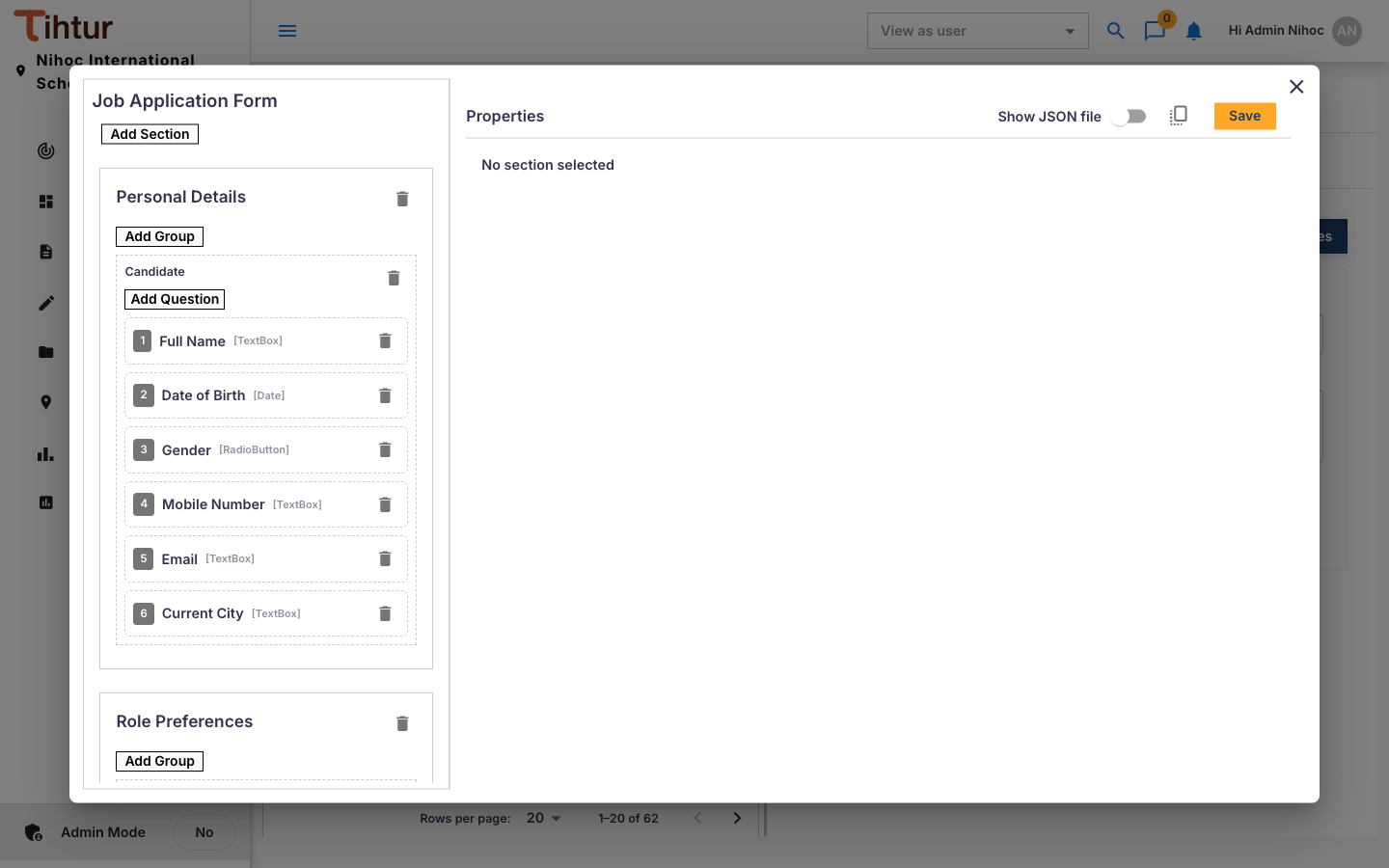
- A form has groups (sections), for example Student Information, Father, Upload Documents.
- A group can be repeated, for example Previous School (add one per school).
- Each group has fields.
Field types #
| Field type | Use it for |
|---|---|
| TextBox | Short text: names, numbers with letters |
| DescriptionBox | Longer text: reasons, remarks |
| NumericBox | Numbers: days, marks, quantities |
| CurrencyBox | Amounts in rupees |
| Date | Dates |
| Dropdown | One choice from a list |
| RadioButton | One choice from a few options shown side by side |
| Checkbox | Yes/no, or several choices |
| UploadButton | File uploads (allowed types and size come from System settings) |
| Button | A choice shown as buttons |
| HtmlContainer | Instructions or a declaration text |
For each field you set its Label, whether it is Required, and whether it is a search filter (Is Filter). Filters appear in Search so people can find tasks by that detail.
Create a form #
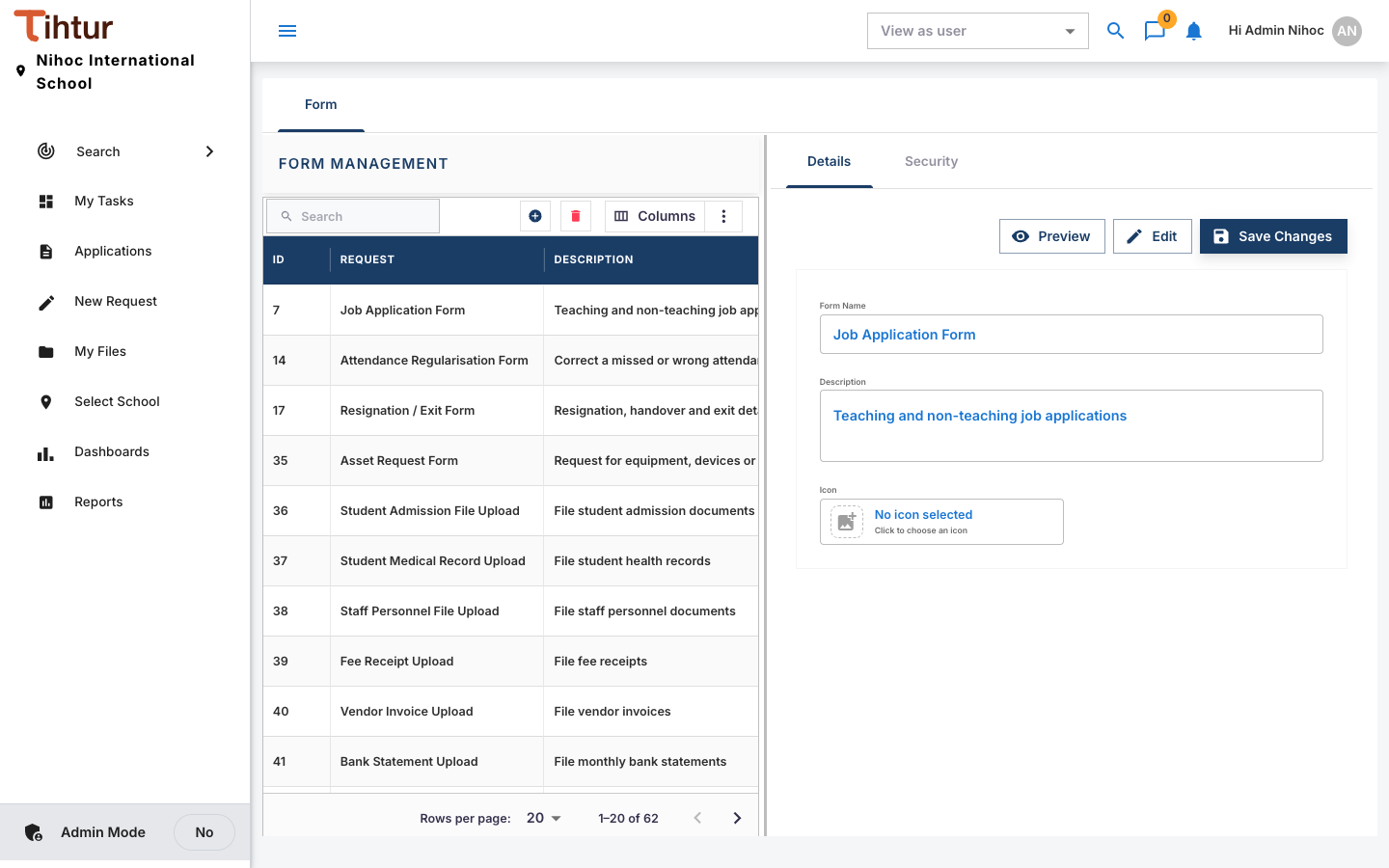
- Open Form Management, press the add button and give the form a Name and Description. Preview shows how it looks; Edit opens the editor.
- In the editor, Add Section, then Add Group and Add Question for each field. Select a question to set its Properties on the right. Give drop-downs their options, or point them at an options list.
- Link a group to a data table where values should fill themselves (Data tables).
- Press Save, and select the form on the document type (Document groups and types).
Tags #
Design the tag form the same way, and select it as the document type's Document Tag. Good tags are the details management will ask about later, because dashboards and reports read them.
| Document type | Useful tags |
|---|---|
| Admission 2027-28 | Entrance Test Score, Interview Outcome, Section Allotted, Admission Number, Admission Fee, Fee Receipt Number |
| Staff Leave Request | Leave Type, Days Approved, Balance After Leave, Substitute Arranged, Payroll Impact |
| Fee Receipt | Receipt Number, Admission Number, Student Name, Class, Fee Type, Amount, Payment Date, Payment Mode |
Linked tags #
A tag can be linked to a form field, so its value comes straight from the form and nobody types it twice. For example, the leave's Leave Type tag can follow the form's Leave Type. Linked tags update when the form changes, and cannot be edited on the Tags tab.
Changing a form that is already in use #
Forms are versioned. When you change a form, new requests use the new version and submitted requests keep the version they were filled on. To keep old answers readable:
- Do add new fields and groups, add drop-down options, change labels and help text.
- Don't change a field's type, or delete and re-add a field, on a form that already has answers. Add a new field instead.
Next: 9. Workflows