
Document groups and types #
A document type is one kind of request or record, such as Admission 2027-28, Staff Leave Request or Fee Receipt. Document types sit in document groups, which are the folders people see on the Apply Online and New Request pages and in Search.
Both are managed under Document Flow, on the tabs Document, Document Group, Document Tag and Document Table Tags.
Groups and their three kinds #
| Kind | Shown on | Demo groups |
|---|---|---|
| Apply | Apply Online (parents, students, applicants) | Admissions, Transport, Hostel, Scholarships & Concessions, Clubs & Activities, Certificates, Canteen & Meal Plans, Careers |
| Create | New Request (staff) | Student Requests, Staff HR Requests, Academics, Student Welfare & Discipline, Finance & Purchase, Events & Communication, Facilities & IT Support, Canteen Requests |
| Index | My Files → Select Document Type (office) | Student Records, Staff Records, Finance Records, Academic Records, Compliance & Policies, Canteen Records, Payroll Records |
Create a group #
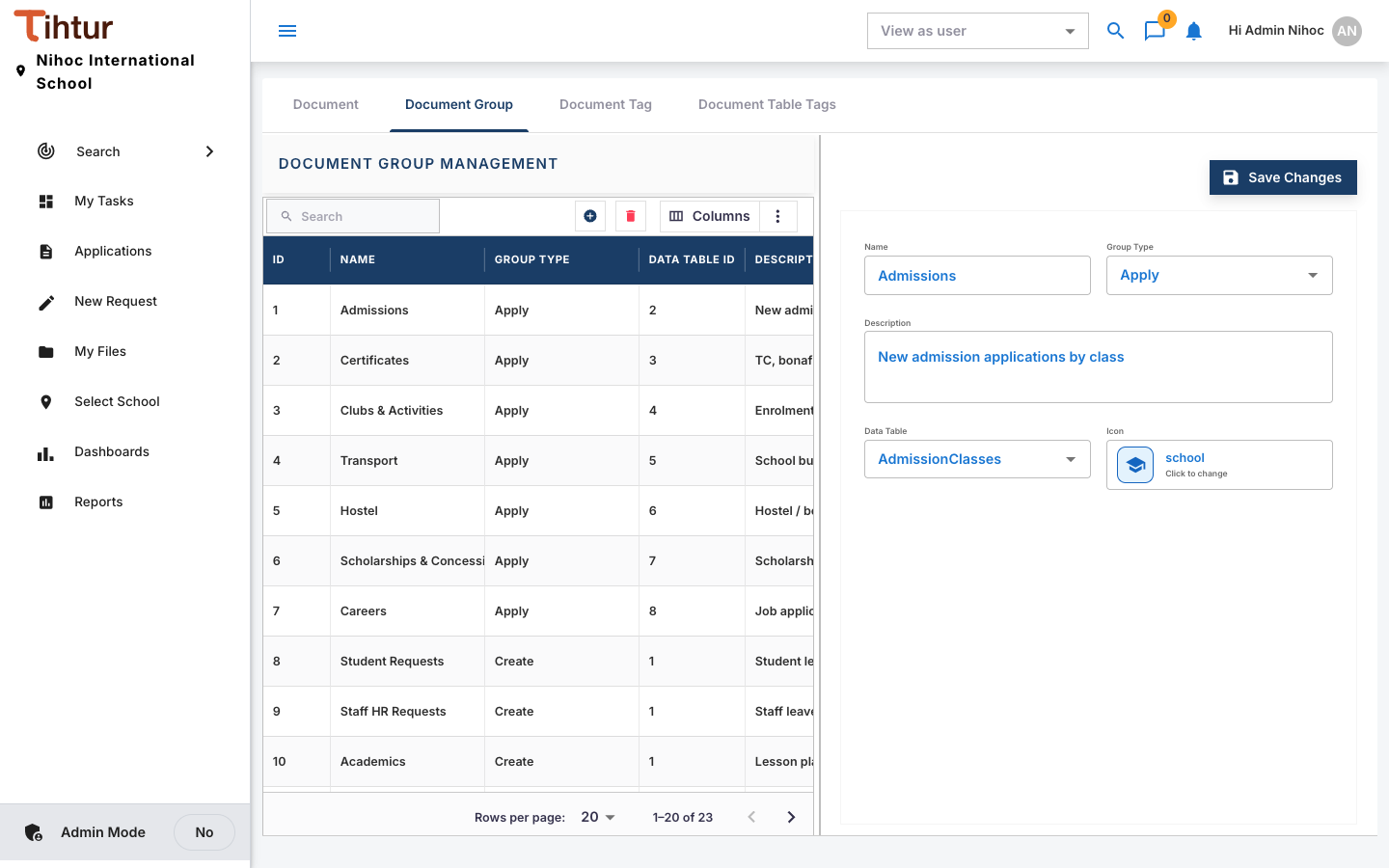
- Open Document Flow → Document Group and press the add button.
- Enter the Name and choose the group type (Apply, Create or Index).
- Press Save Changes.
Create a document type #
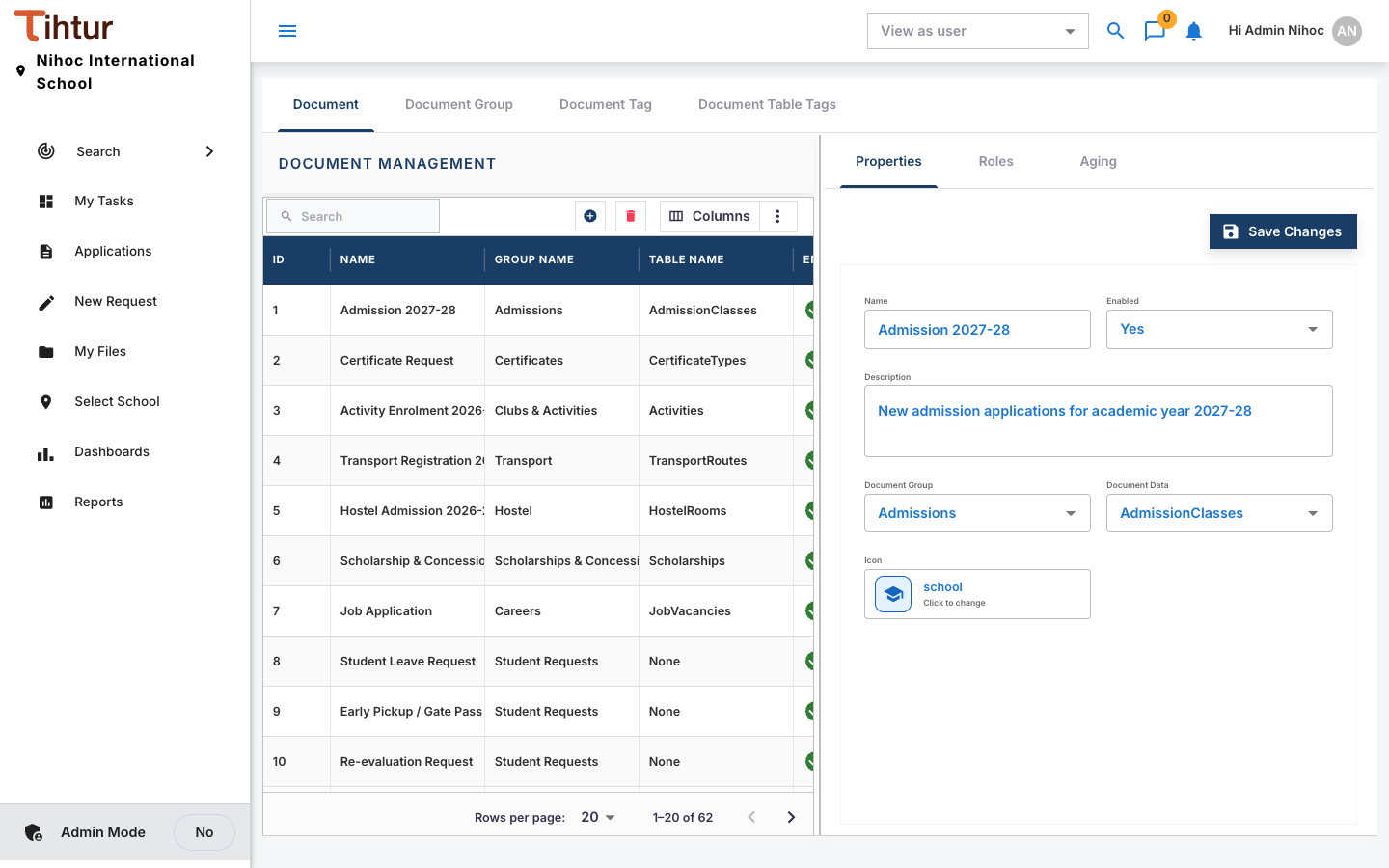
On the Document tab, press the add button and fill in the Properties:
Field Notes Name What people see, for example Transport Registration 2026-27 Description One line on when to use it Document Group The folder it appears in Form The questions (Forms and tags) Document Tag The processing details (tags) staff record on it Data Table Where its records are kept for search and reports Enabled Untick to hide it without deleting anything Save, then connect it to a workflow (Workflows) and give roles access (Who can see and act).
Every document type needs a workflow, even a simple Received → Filed one for records.
Aging per document type #
Under Aging, a document type can have its own On time and Critical After days, instead of the system defaults. Choose whether aging counts from the Created date or from the Last activity (it falls back to the created date).
Example: a Student Leave Request should be decided the same day, so set On time to 1 day and Critical After to 2.
Yearly forms #
For forms that change every year, such as Admission 2027-28, create the new year's document type and disable last year's once it closes. Old applications stay intact and searchable.
Next: 8. Forms and tags