
Profile types and settings #
Roles decide which documents a person works with. Profile types add extra abilities on top, for example uploading attachments, seeing dashboards, or deleting a task.
Each user has one profile type. Create a few that match how your school works.
The settings you can switch on #
| Setting | What it allows |
|---|---|
| AddAttachment | Add attachments and linked documents on a task |
| DeleteAttachment | Remove attachments and linked documents from a task |
| InternalTagUpdate | Edit a record's details straight from the Search results |
| ControlCenters | See Dashboards and Reports in the menu |
| Delete Task | Use Delete Task on the task page. The task disappears from every list but is kept, so the administrator can restore it. |
| Restart Workflow | Use Restart Workflow: clear a task's history and send it back to the first step (it also unlocks the document) |
Admins (user type Admin) always have Delete Task and Restart Workflow.
The list also shows SearchSettings, DocumentTagDetails, Application Process and UserSettings. These are kept for compatibility and do not change anything in the current version.
Profile types in the demo school #
| Profile type | Settings | Give it to |
|---|---|---|
| DefaultProfile | (basic) | Parents and students |
| StandardProfile | (basic) | Most staff |
| Power User | Attachments (add and delete), edit from search, dashboards and reports | Office, accounts, coordinators, management |
Create a profile type #
- Open Students & Staff → User Profile.
- Press the add button, enter the name (for example Management), and confirm. Names must be unique.
- Select the profile type. Under Setting Name, add settings from Profile Names to Selected Users with +. The Users tab lists who has it. Save.
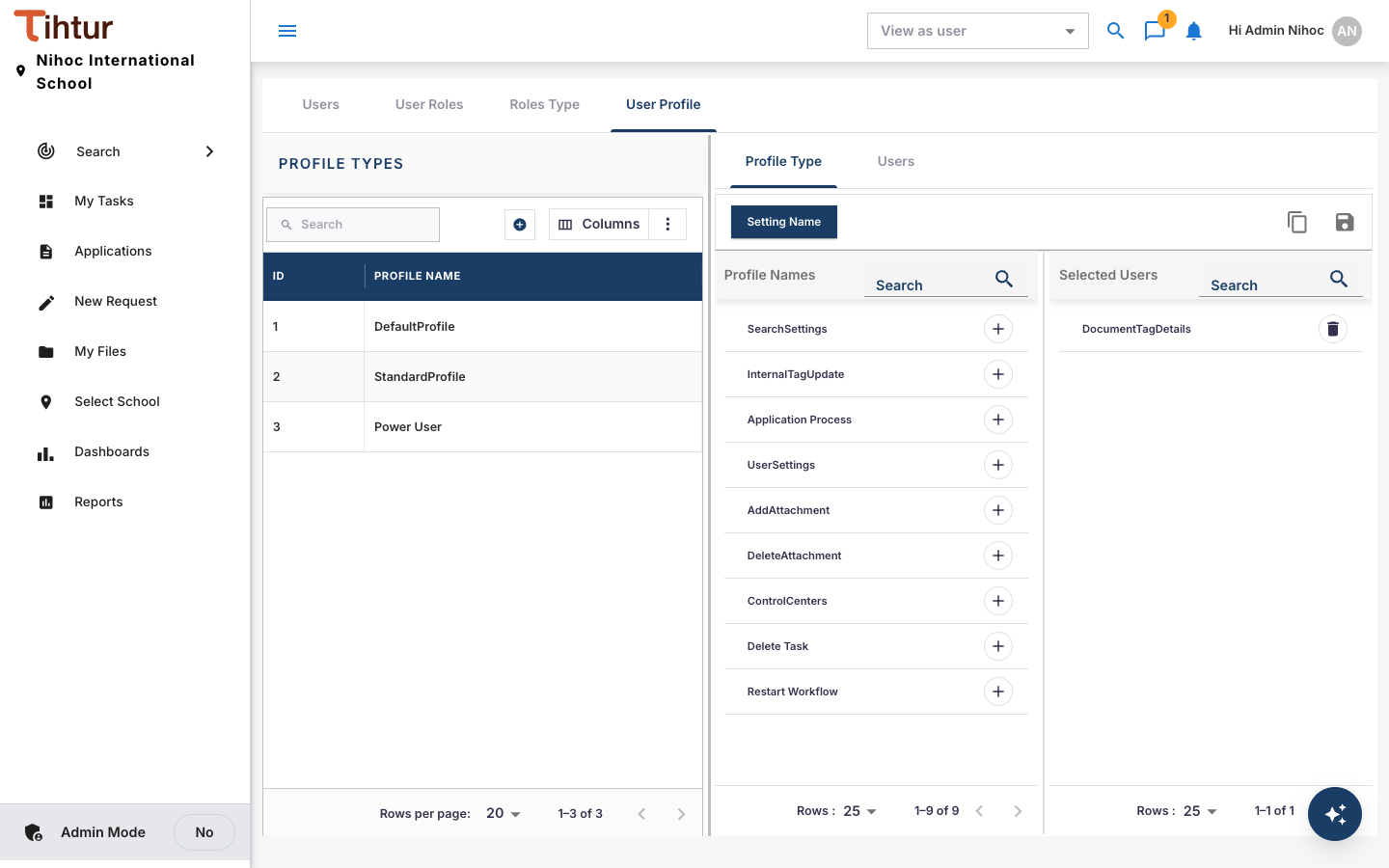
- Give it to users on their user record (Users).
Keep Delete Task and Restart Workflow rare. They are powerful and are best kept for one or two trusted people besides the admin.
Next: 5. Users