
Raising a staff request #
Staff use the New Request page for internal requests: leave, purchases, lesson plans, incident reports and more. Each request goes to the right people automatically and leaves a record.
What you can create #
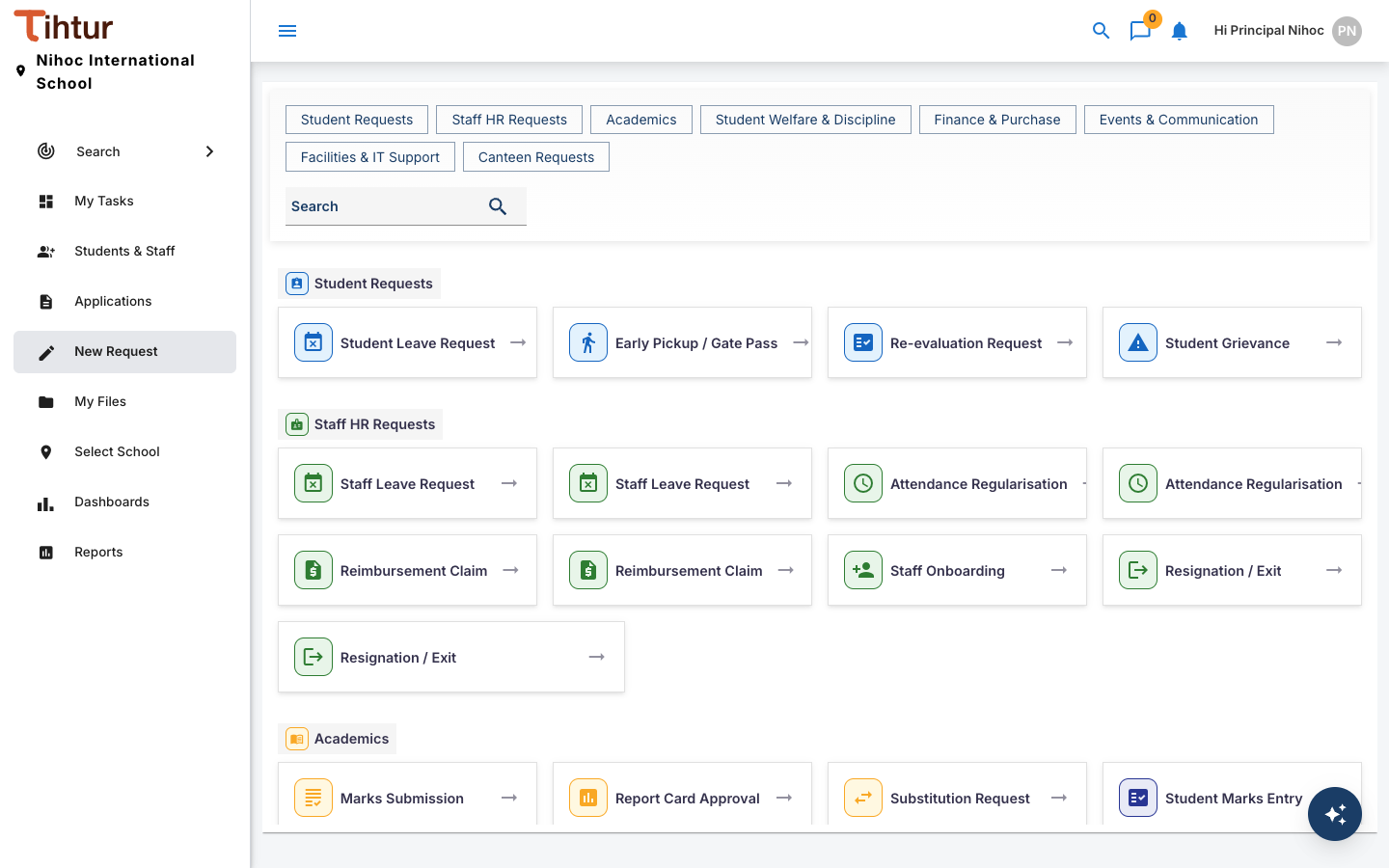
Forms on the New Request page are grouped by area. In the demo school:
| Group | Example forms |
|---|---|
| Staff HR Requests | Staff Leave Request, Attendance Regularisation, Reimbursement Claim, Resignation / Exit |
| Academics | Lesson Plan Submission, Marks Submission, Question Paper Approval, Report Card Approval |
| Student Requests | Student Leave Request, Early Pickup / Gate Pass, Re-evaluation Request |
| Student Welfare & Discipline | Incident Report, Counselling Referral, Medical Incident Report |
| Finance & Purchase | Purchase Requisition, Vendor Payment Request, Petty Cash Request |
| Events & Communication | Event Proposal, Field Trip Request, Circular / Notice Approval |
| Facilities & IT Support | Maintenance Request, IT Support Ticket, Asset Request |
| Canteen Requests | Special Diet Request, Canteen Event Order, Canteen Stock Indent |
You only see the forms your role is allowed to raise. Use the buttons at the top to jump to a group, or Search for a form.
Worked example: a staff leave request #
- Open New Request and choose Staff Leave Request.
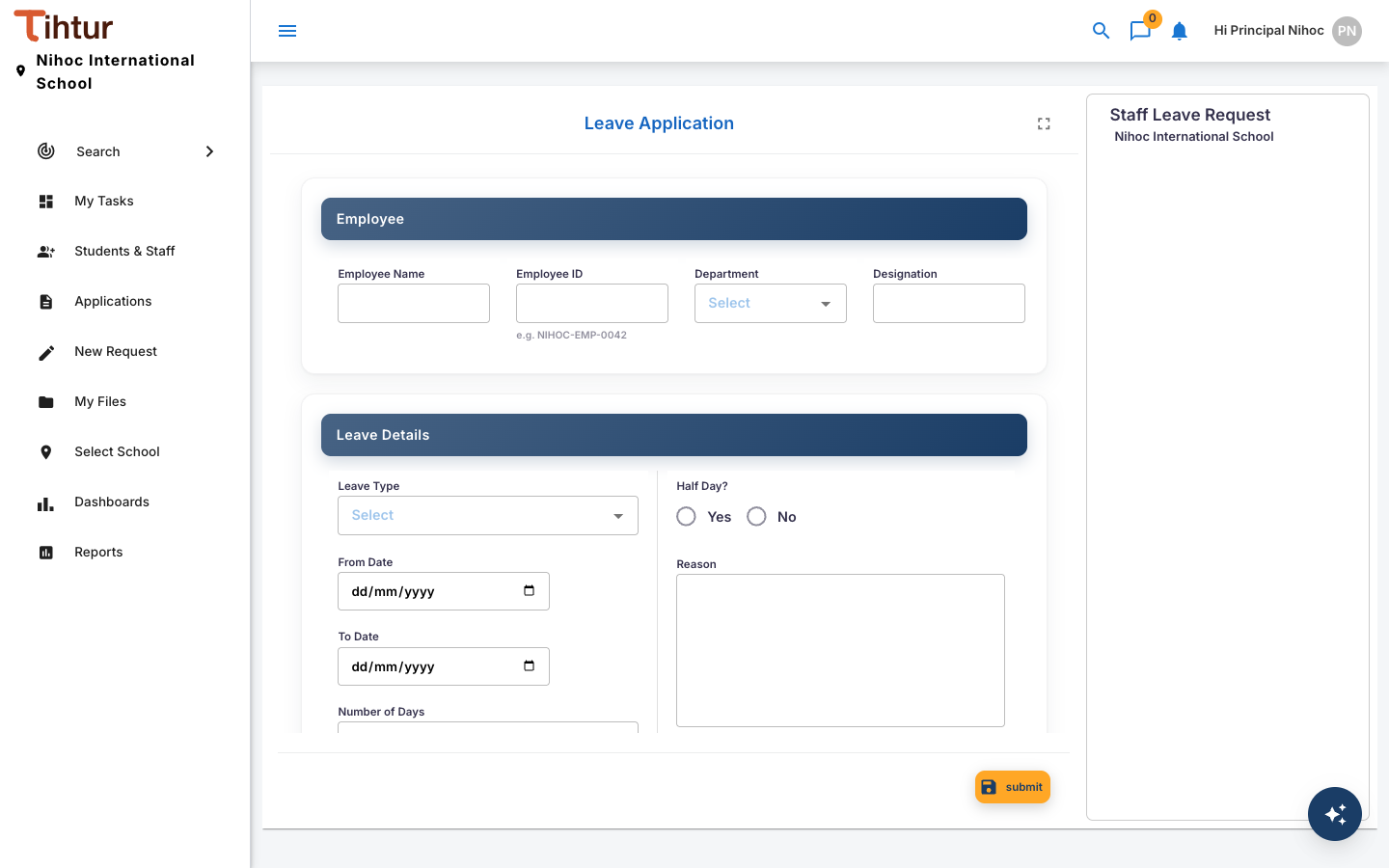
- Fill in the form:
- Employee: your name, employee ID, department and designation.
- Leave Details: leave type, from and to dates, number of days, half day (and which half), and the reason.
- Class Cover: classes or duties affected, a suggested substitute, your contact number during leave, and a supporting document such as a medical certificate.
- Press Submit.
The request now follows its workflow:
| Step | Who acts | What they can do |
|---|---|---|
| Principal Approval | Holders of the Staff Leave Approval role (the Principal) | Approve or Reject |
| HR Recording | The HR Manager | Recorded in Register / Payroll |
| Approved & Recorded | — | Finished |
You get a notification at each step, and the request shows its current status in My Tasks.
Good to know #
- Who approves is decided by roles, not names. If the Principal changes, the admin gives the role to the new person and nothing else changes.
- Each school approves its own staff. At a branch, the request goes to that branch's Principal.
- Use notes for questions. If an approver needs more information, they add a note on the task, and you answer there. The conversation stays with the request.
- Forms fill themselves where they can. When you pick a student by admission number or a colleague from the staff list, the related fields fill in from the school's records.