
Reports #
Reports are statements for a period (a month, a quarter or a year), with totals, comparisons and an explanation of every figure. The demo school has 10, across Finance, Admissions, Academics, People & HR, Student Welfare and Operations.
Reports are managed under Reports in the admin menu. Users open them from Reports in their menu.
The report list #
Each report has:
| Field | Meaning |
|---|---|
| Name and Description | What users see |
| Code | A short unique code |
| Category | Groups reports on the Reports page, for example Finance |
| Icon code and Sort order | How it looks and where it sits in the list |
| Source view | The data the report reads (for example fee details, admissions, staff HR) |
| Definition (JSON) | The columns, totals, filters and periods |
| Job roles who can open this report | Who sees it |
| Enabled | Untick to hide it |
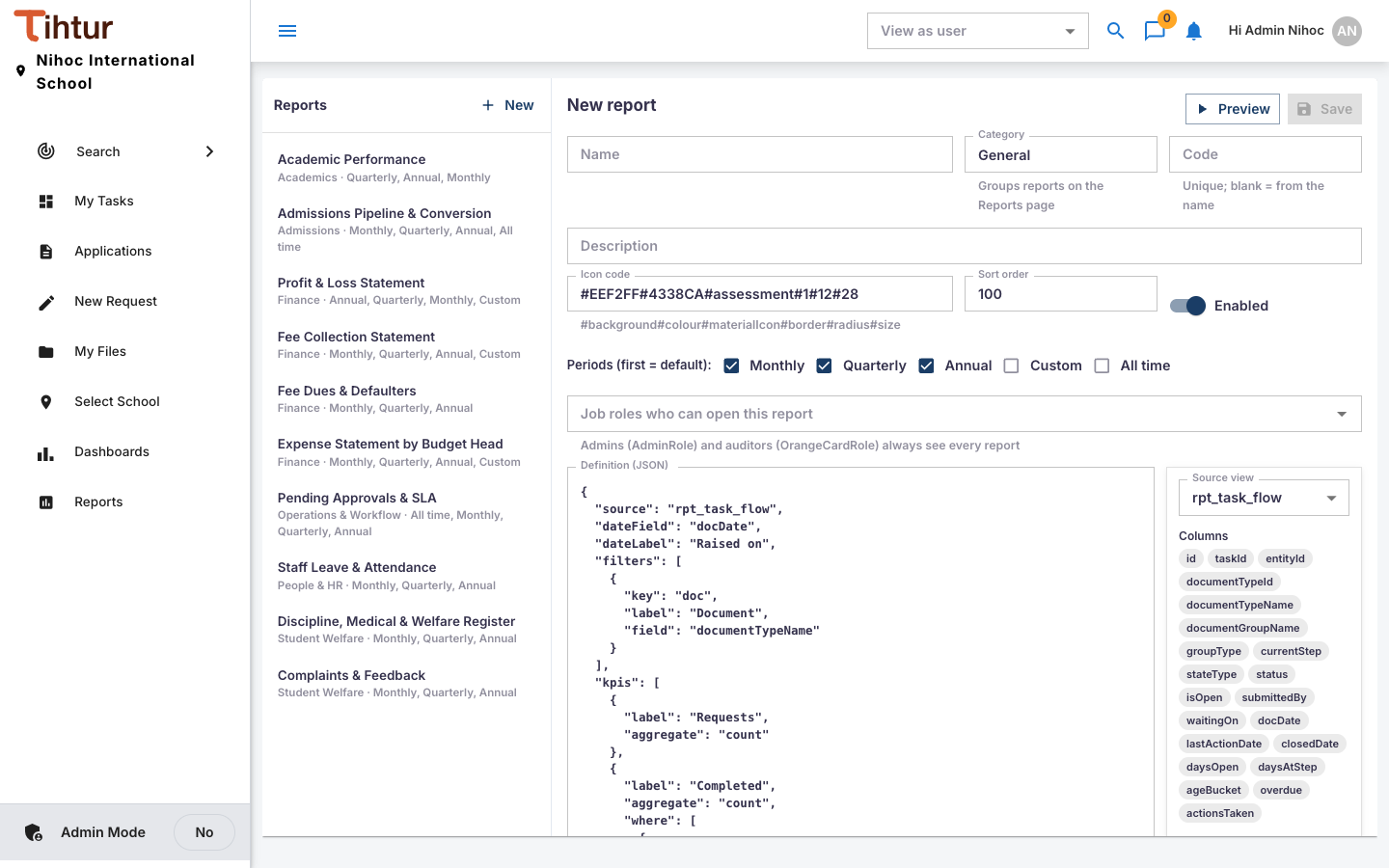
Add a report #
The quickest way is to start from an existing report:
- Open Reports in the admin menu, select a similar report and press Duplicate.
- Change the Name, Code, Category and Description.
- Adjust the Definition: which columns to show (see Columns for what the source offers), the totals and the filters.
- Press Preview to check it with real data.
- Choose the job roles who can open it, tick Enabled, and Save.
The Definition is technical. If you are not comfortable editing it, ask TihTur support for a new report: describe the columns, totals and filters you want, with an example of the paper version you use today.
Who sees reports #
A user sees Reports in the menu when their profile type includes ControlCenters, and then the reports open to their job roles. Reports always show the school selected in the header.
Next: 13. Emails and reminders